Delete Shared Folder
This procedure permanently removes shared folders from both EmpowerID and the underlying file server, deleting the folder and all its contents.
Warning
This action is permanent and cannot be undone. Deleting a shared folder completely removes the folder and all contents from the server. Ensure proper backups and authorization before proceeding.
Delete Shared Folders
- Navigate to Resource Admin.
- Select Shared Folders from the resource type menu.
- Click the Workflows tab.
- Click Delete Shared Folder.
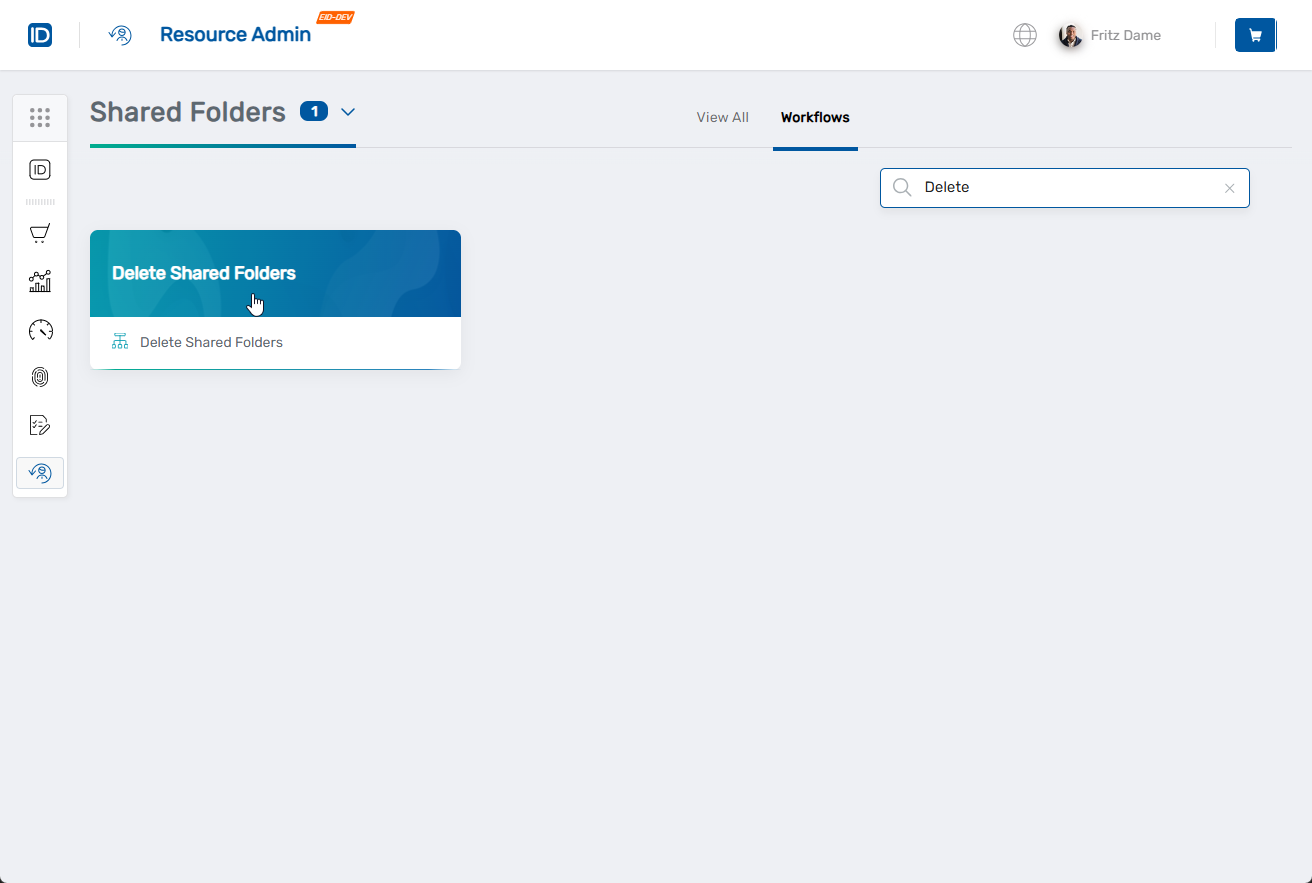
- Enter search criteria and click Search.
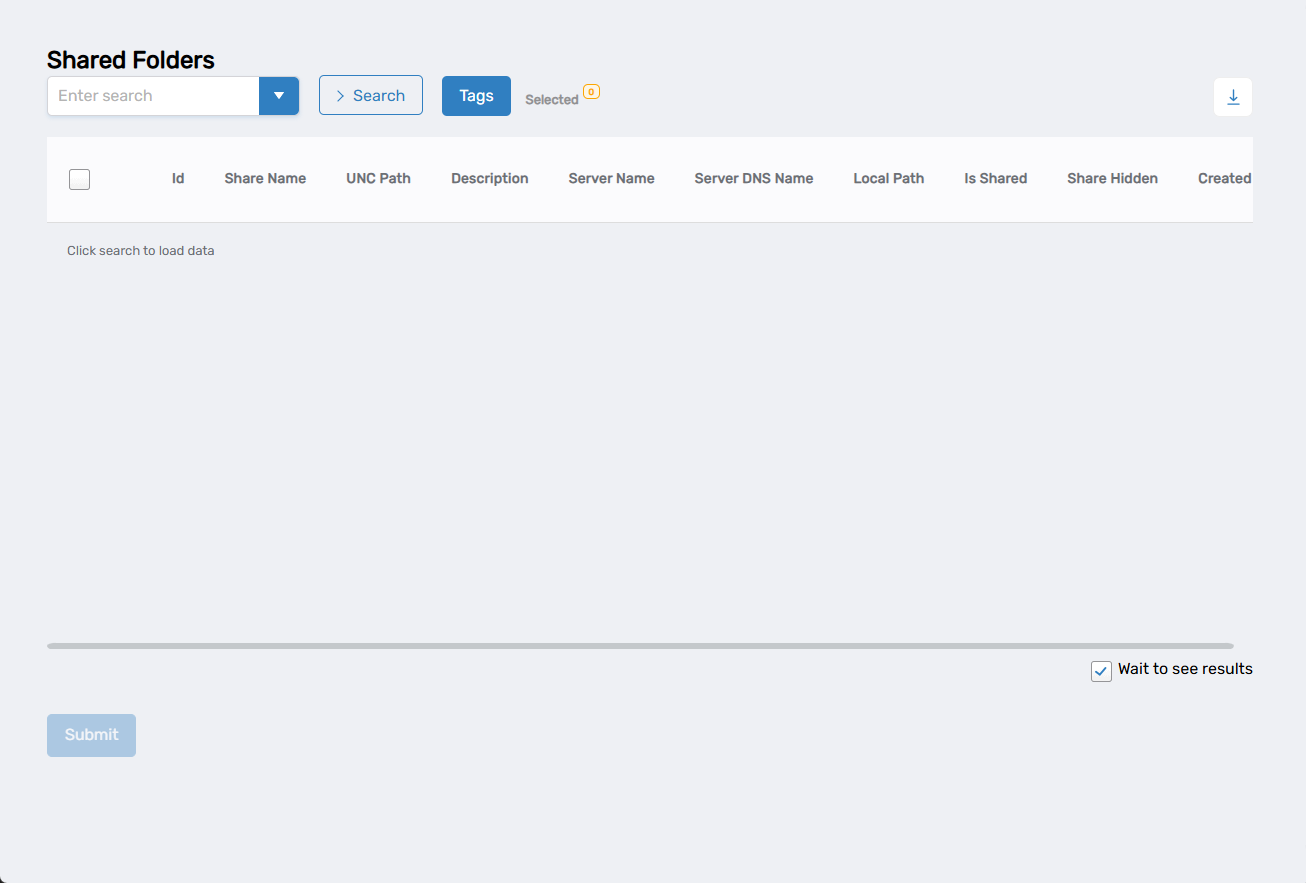
- Select folders by checking the box next to each one.
- To add more folders, enter different search criteria, click Search, and select additional folders.
- Optionally, uncheck Wait to see results to create a collaboration task in My Tasks for later completion.
- Click Submit.
- Review the folders to be permanently deleted.
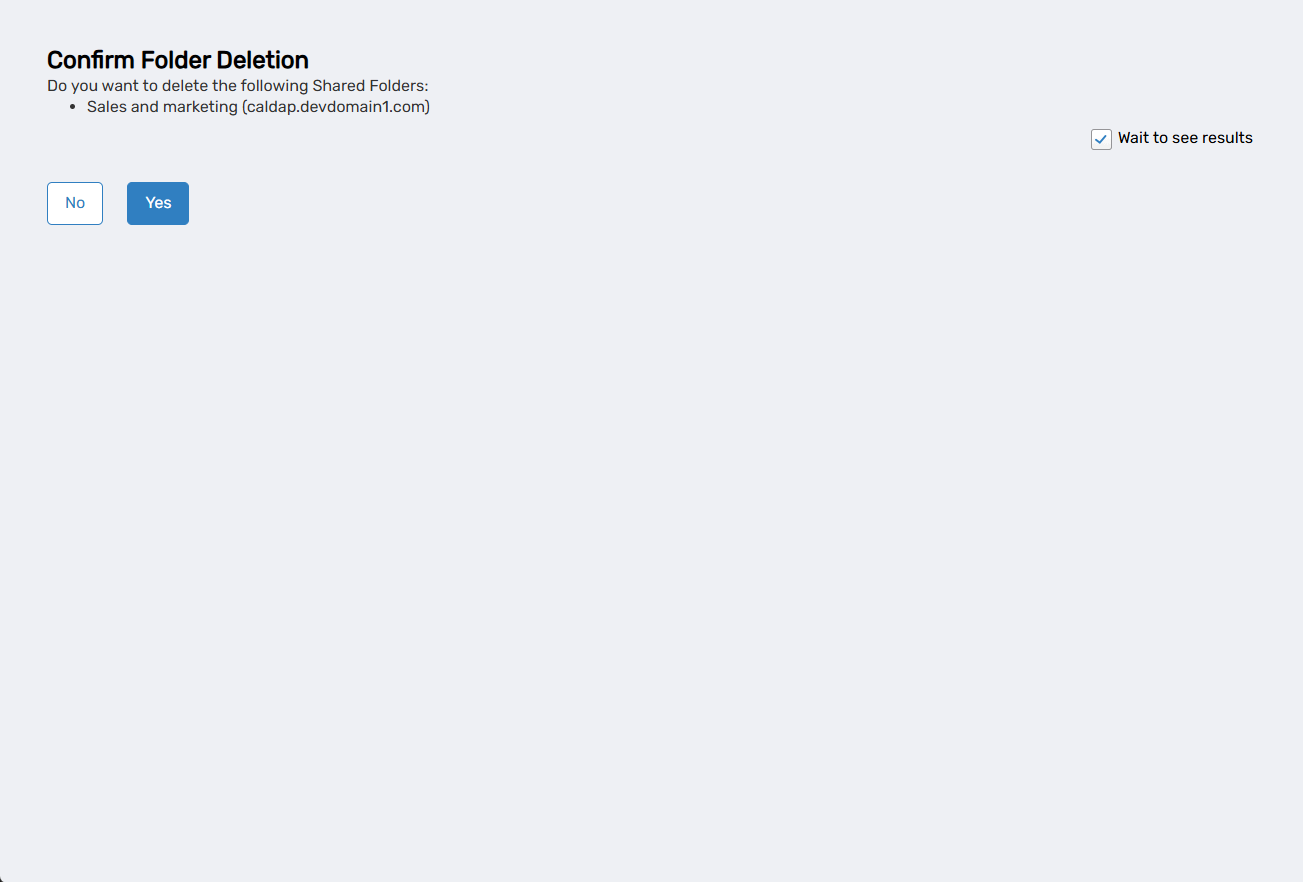
- Verify the folder names and locations are correct.
- Click Submit to permanently delete the folders.
- Review the Operation Execution Summary.
- Click Submit to exit.
Results
- Shared folders are permanently removed from the file server
- Folders are deleted from EmpowerID management
- All files and subfolders are permanently deleted
- Access policies and assignments associated with the folders are removed
- Folders no longer appear in network shares or EmpowerID interfaces