Delete Client Certificates
As an application owner, you can delete client certificates from Microsoft Entra applications. EmpowerID processes the request and removes the certificate from Entra ID on your behalf.
warning
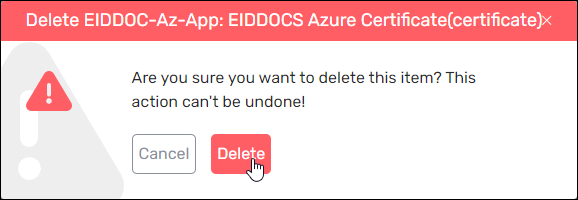
Deleting a client certificate is permanent and cannot be undone. Be sure the certificate is no longer in use before proceeding.
Steps to Delete a Client Certificate
- Log in to the Resource Admin portal.
- In the Resource Type menu, select Applications.
- Search for the Microsoft Entra application that contains the certificate you want to delete.
- Click the Friendly Name of the application.
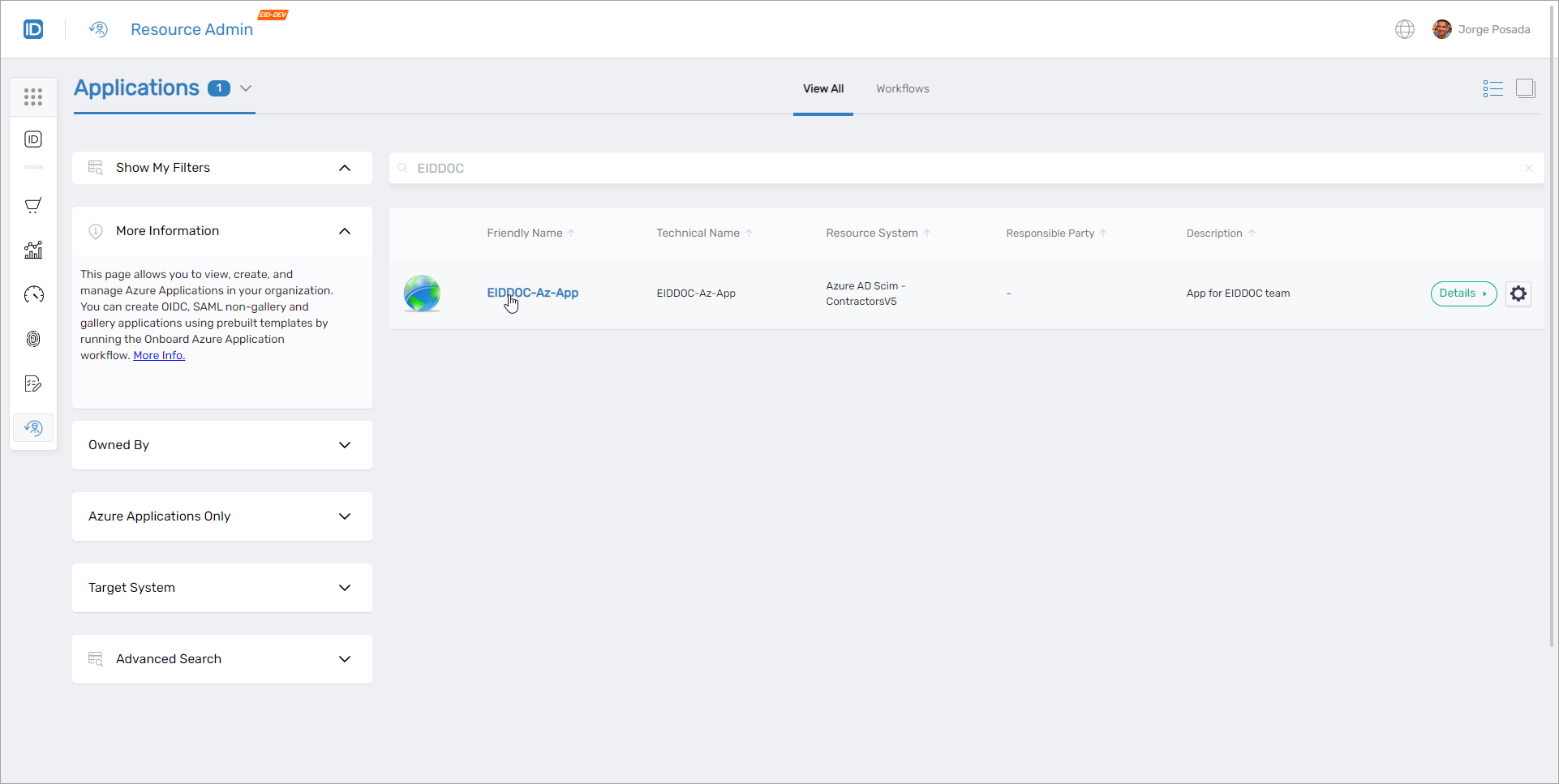
This opens the Overview page for the selected application.
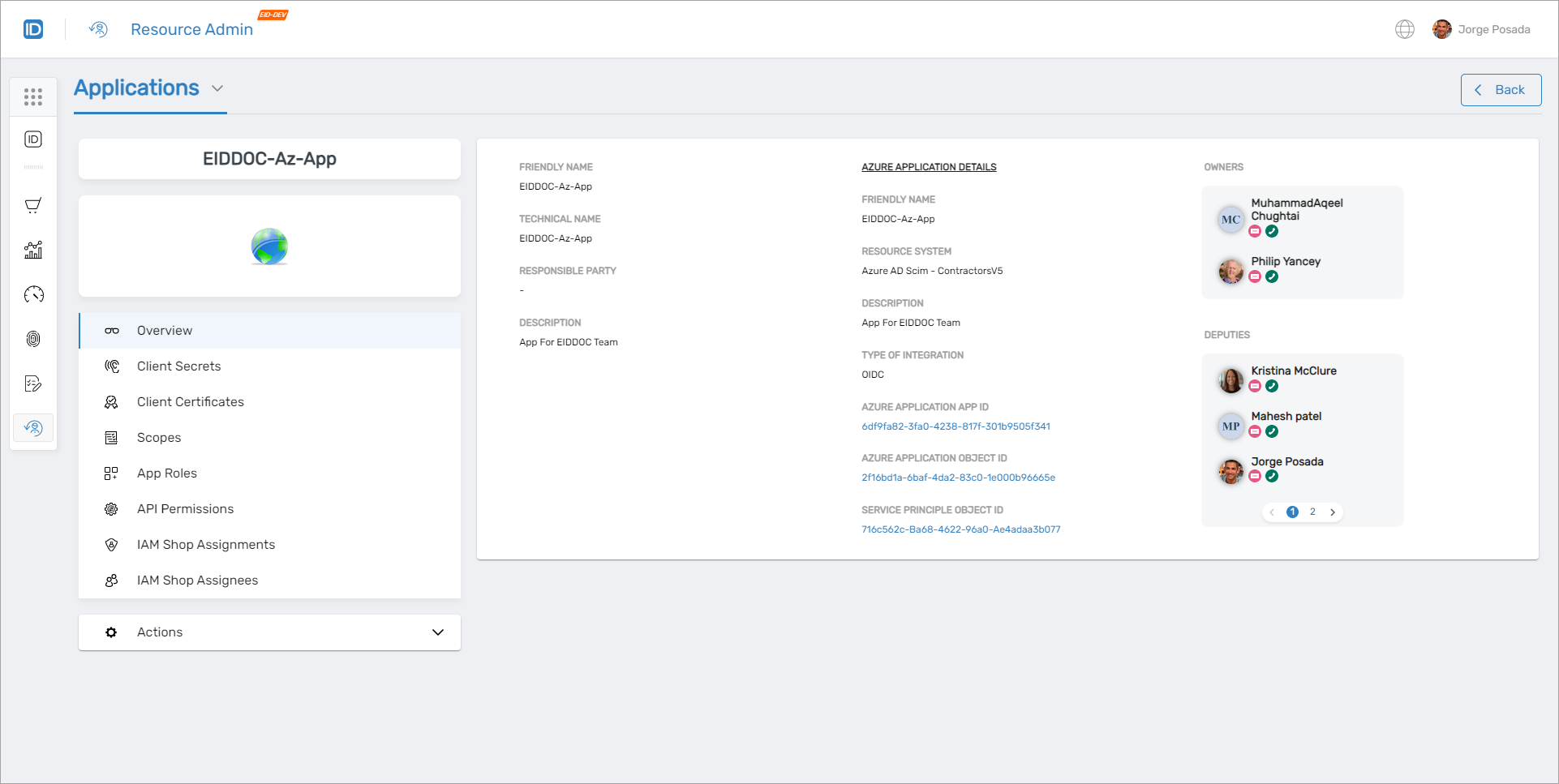
- In the left navigation menu, click Client Certificates.
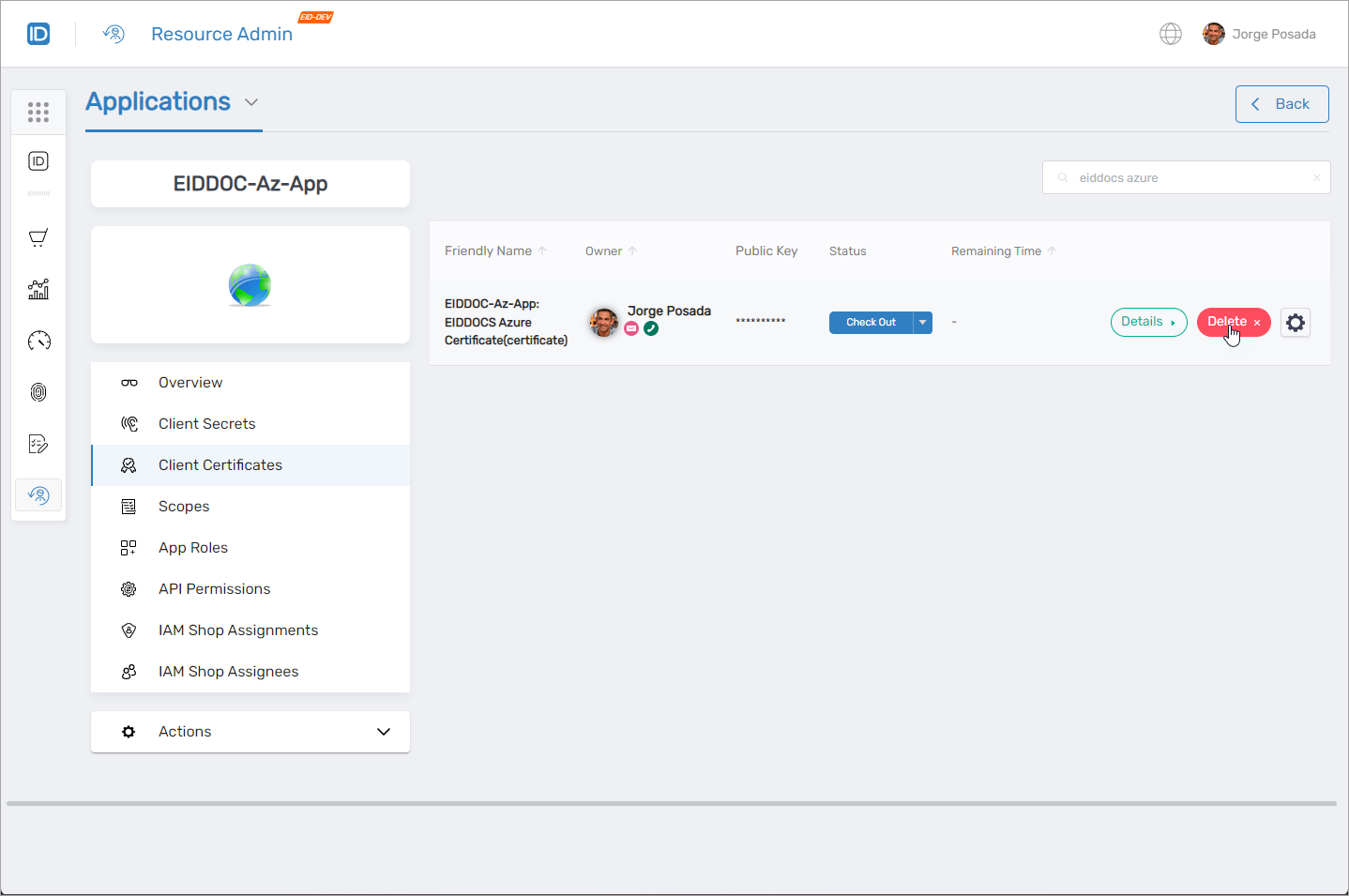
- Locate the certificate you want to delete.
- Click the Delete button for the certificate.
- When prompted, click Delete to confirm.
What Happens Next
- EmpowerID deletes the certificate from the Microsoft Entra application.
- The certificate record is removed from the Client Certificates list in Resource Admin.
- The deletion is logged in EmpowerID's audit trail for compliance and visibility.