Create Visibility Restriction Policies
Create Visibility Restriction policies to limit which resources users can view in EmpowerID based on their organizational context. These policies function like RBAC delegations—you assign them to any EmpowerID Actor (Person, Group, Management Role, Business Role and Location, Query-Based Collection), and all members of that Actor inherit the policy.
Prerequisites
Before creating Visibility Restriction policies, ensure you have:
- Access to create and manage Visibility Restriction policies in EmpowerID
Procedure
-
In the EmpowerID web application, navigate to Role Management > Visibility Restriction Policies.
-
Select the Create Policy tab.
The Create a Visibility Restriction Policy form displays.
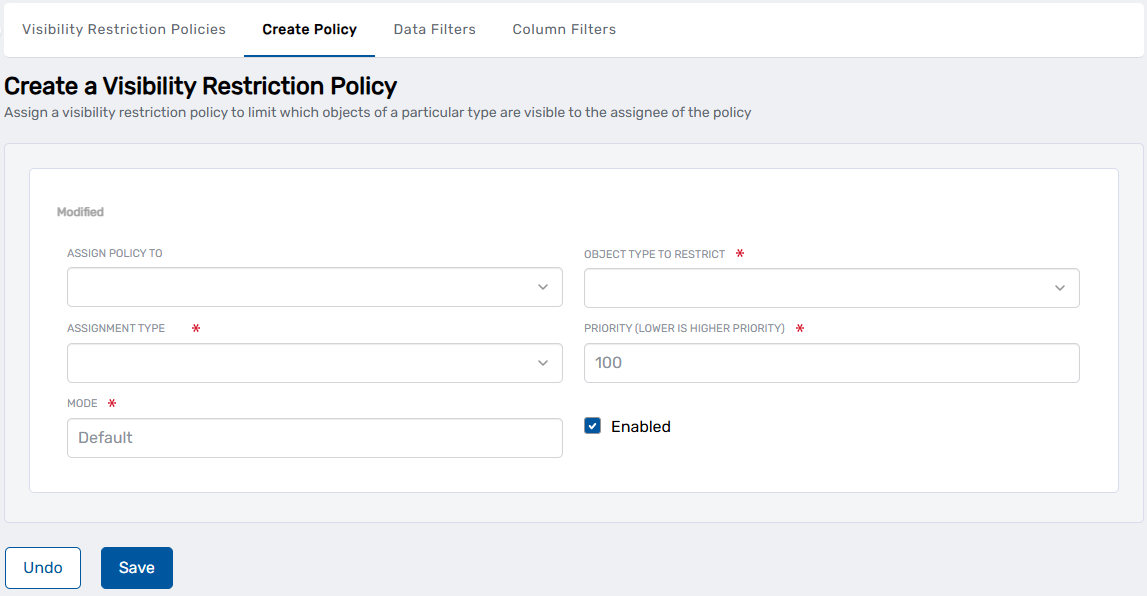
-
From the Assign Policy To dropdown, select the Actor type that will receive the policy:
- Person — Applies the policy to a specific person
- Group — Applies the policy to all members of a specific group
- Business Role and Location — Applies the policy to all people in a specific BRL combination
- Management Role — Applies the policy to all members of a specific Management Role
- Management Role Definition — Applies the policy to all child Management Roles of a definition
- Query-Based Collection (SetGroup) — Applies the policy to all members of a specific collection
-
In the Assignee field, search for and select the specific actor to receive the policy.
Note: This field filters based on the Actor type selected in step 3.
-
From the Object Type To Restrict dropdown, select the resource type you want to restrict visibility for (e.g., Person, Computer, Group, Account).
-
From the Assignment Type dropdown, select how the policy defines visibility scope:
- Person Relative Resource — Policy holders see only objects relative to their own location or context
- Direct — Policy holders see only a specific resource object you specify
- Scoped At Location — Policy holders see only objects in a specific location
- Target Group — Policy holders see only objects belonging to a specific group
- Target Management Role — Policy holders see only objects belonging to a specific Management Role
- Target Query-Based Collection — Policy holders see only objects belonging to a specific Query-Based Collection
-
Configure the visibility scope based on the Assignment Type selected in step 6:
- For Person Relative Resource: Select the relative resource option (e.g., "People in Person's Location" or "Accounts in Person's Location")
- For Direct: Search for and select the specific resource object
- For Scoped At Location: Click Select a Location, search for and select a location in the Location Selector, then click Save
- For Target Group, Management Role, or Query-Based Collection: Search for and select the target actor
-
In the Priority field, enter a numeric value from 1 to 100.
Lower numbers indicate higher priority when a user has multiple policies (priority 1 overrides priority 50).
-
Specify the Mode. Default mode is used most commonly.
-
Select Enabled to activate the policy.
-
Review your configuration to ensure all settings are correct.
-
Click Save.
Verify the Results
After creating the Visibility Restriction policy:
-
Log out of the EmpowerID web application.
-
Log in as a user who should have the policy applied (e.g., a member of the group, Management Role, or BRL to which you assigned the policy).
-
Navigate to a page where the restricted resource type is displayed.
For example, if you restricted Person visibility, navigate to the White Pages or People search.
-
Search for resources of the restricted type.
-
Verify that only the resources permitted by the policy are visible.
For example, if the policy restricts visibility to people in a specific group, only members of that group should appear in search results.
-
(Optional) Log in as a user who should NOT have the policy applied and verify their visibility is not affected by the policy.
Related Topics
- Visibility Filters Overview — Understand all visibility policy types and when to use them
- Create Column Filter Policies — Hide or modify specific resource attributes
- Create Data Filter Policies — Apply custom SQL-based visibility logic
- About Role-Based Access Control — Understand how RBAC delegation relates to visibility policies