Create Column Filter Policies
Create Column Filter Policies to hide or replace specific attribute values on EmpowerID resources. Column Filter Policies use SQL SELECT clauses written against the Identity Warehouse to specify which attributes are visible and how they appear to users with the policy.
Prerequisites
Before creating Column Filter Policies, ensure you have:
- Access to create and manage Visibility Filter policies in EmpowerID
Procedure
-
In the EmpowerID web application, navigate to Role Management > Visibility Restriction Policies.
-
Select the Column Filters tab.
-
Click Add above the grid.
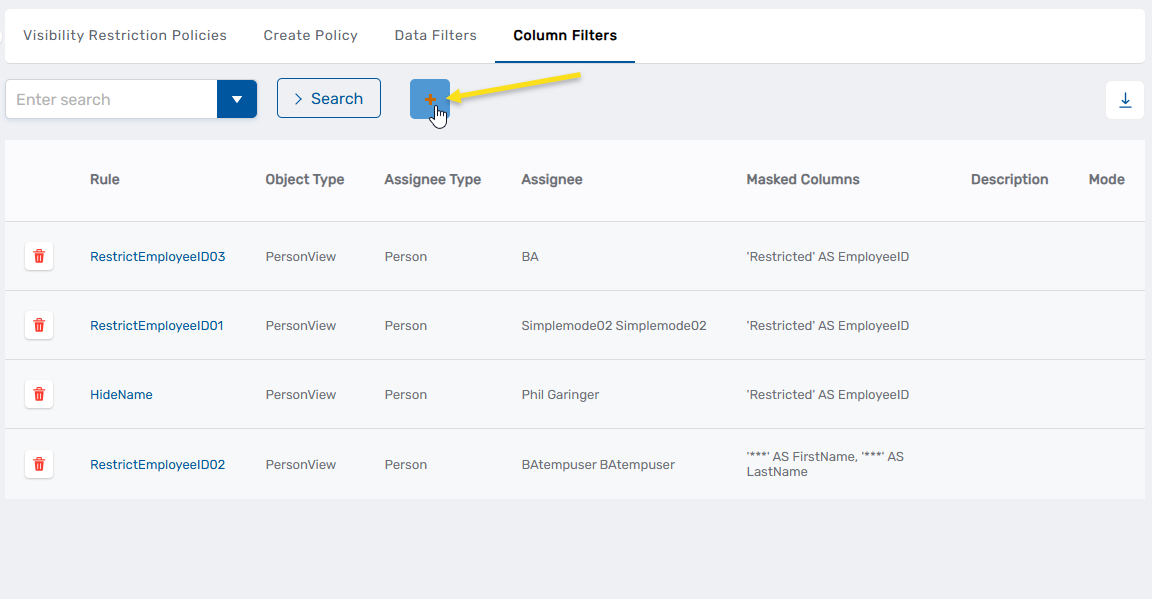
The Filter Details form for the Column Visibility Filter displays.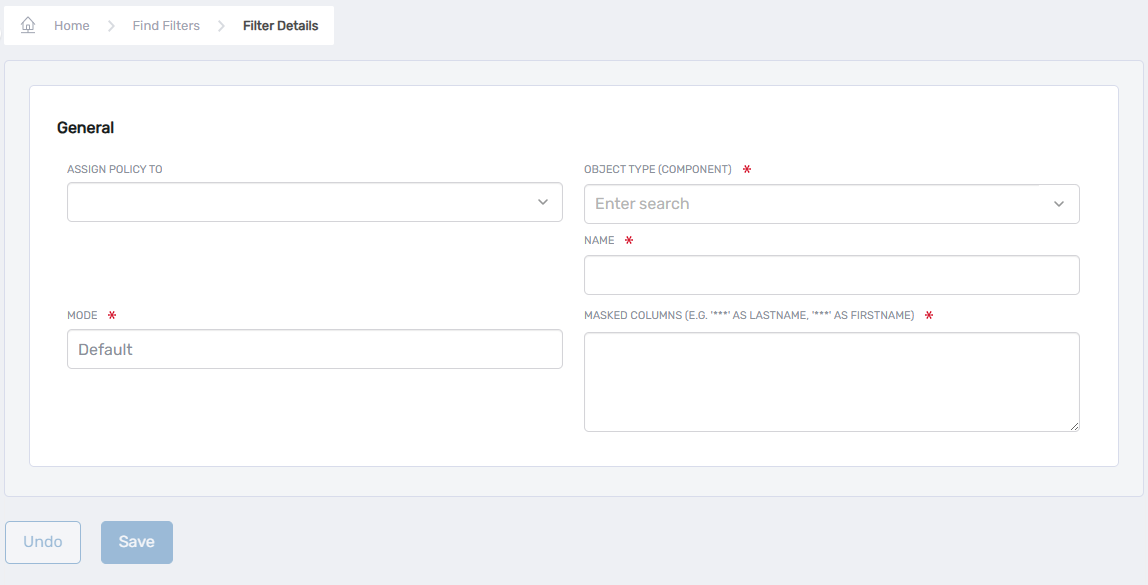
-
From the Assign Policy To dropdown, select the Actor type that will receive the policy:
- Person — Applies the policy to a specific person
- Group — Applies the policy to all members of a specific group
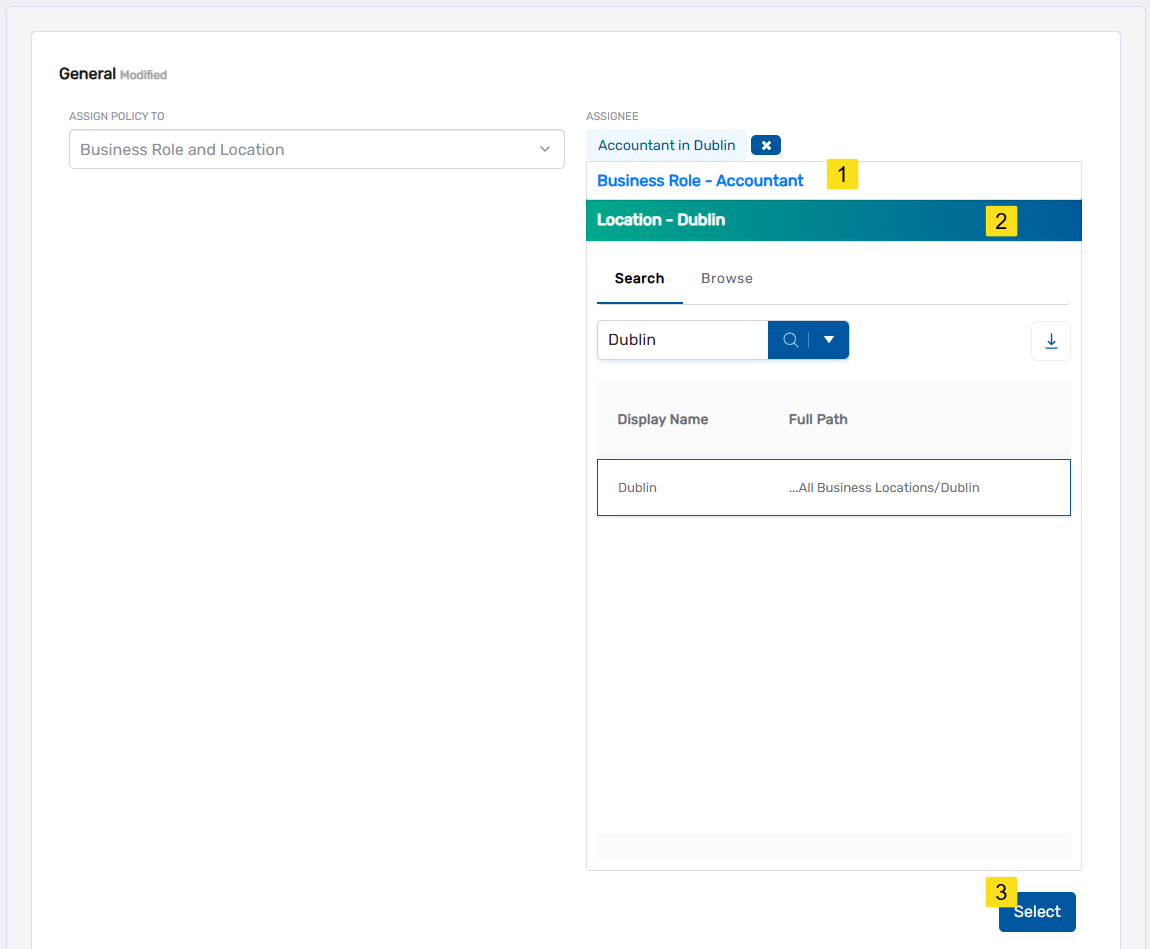
- Business Role and Location — Applies the policy to all people in a specific BRL combination
- Management Role — Applies the policy to all members of a specific Management Role
- Management Role Definition — Applies the policy to all child Management Roles of a definition
- Query-Based Collection (SetGroup) — Applies the policy to all members of a specific collection
-
In the assignee field that appears (labeled based on your Actor type selection), specify the actor to receive the policy:
- For most Actor types: Search for and select the specific actor
- For Business Role and Location: Click Select a Role and Location, search or browse for the desired Business Role and Location, then click Select
-
In the Object Type (Component) field, enter the name of the EmpowerID component View you want to filter.
Component Views follow the pattern
[ComponentName]View. For example:- To filter Person attributes, enter PersonView
- To filter Group attributes, enter GroupView
- To filter Account attributes, enter AccountView
-
Enter policy identification information:
- Name: Enter the internal name for the policy
- Display Name: Enter the user-friendly name
- Description: Enter a description of what the policy does
-
Leave the Mode field set to Default.
-
In the Allowed Columns field, enter the SQL SELECT clause that defines which columns are visible and how values are displayed.
To replace an attribute value with static text:
'Private' AS Title, [PersonView].*This replaces the Title attribute with "Private" while showing all other PersonView columns.
To hide multiple attributes:
' ' AS AccountStoreName, ' ' AS AccountStoreFriendlyName, [GroupView].*This replaces AccountStoreName and AccountStoreFriendlyName with blank spaces for Groups.
SQL syntax:
'[StaticValue]' AS [AttributeName]— Replaces the attribute with a static value[ComponentView].*— Includes all other columns from the component View
-
Click Save.
Verify the Results
After creating the Column Filter Policy:
-
Log out of the EmpowerID web application.
-
Log in as a user who should have the policy applied (e.g., a member of the group or Management Role to which you assigned the policy).
-
Navigate to a page where the filtered resource type is displayed.
For example, if you created a Column Filter for Person attributes, navigate to the White Pages or People search.
-
Search for or view resources of the filtered type.
-
Verify that the filtered attributes display the replacement values instead of actual data.
For example, if you replaced the Title attribute with "Private," verify that all person records show "Private" in the Title field instead of actual job titles.
-
Verify that non-filtered attributes display normally.
-
(Optional) Log in as a user without the policy and verify they see the actual attribute values.
Related Topics
- Visibility Filters Overview — Understand all visibility policy types and when to use Column Filters
- Create Visibility Restriction Policies — Apply location and role-based visibility restrictions
- Create Data Filter Policies — Limit which objects users can view