Change Your Master Password
Change your master password if you still know your current one and want to improve security or follow password rotation policies.
Overview
You can update your master password at any time as long as you remember the current one. This is useful if your password is due for rotation or you suspect it may have been exposed. Changing the password does not affect access to your previously encrypted data.
If you don’t remember your current master password, you must reset it instead. Resetting will delete access to all secrets and credentials encrypted with the old key.
What You’ll Need
- Your current master password
Change Your Master Password
- Access Your Profile
- In the EmpowerID Web application, click your username.
- Select View Profile from the dropdown.
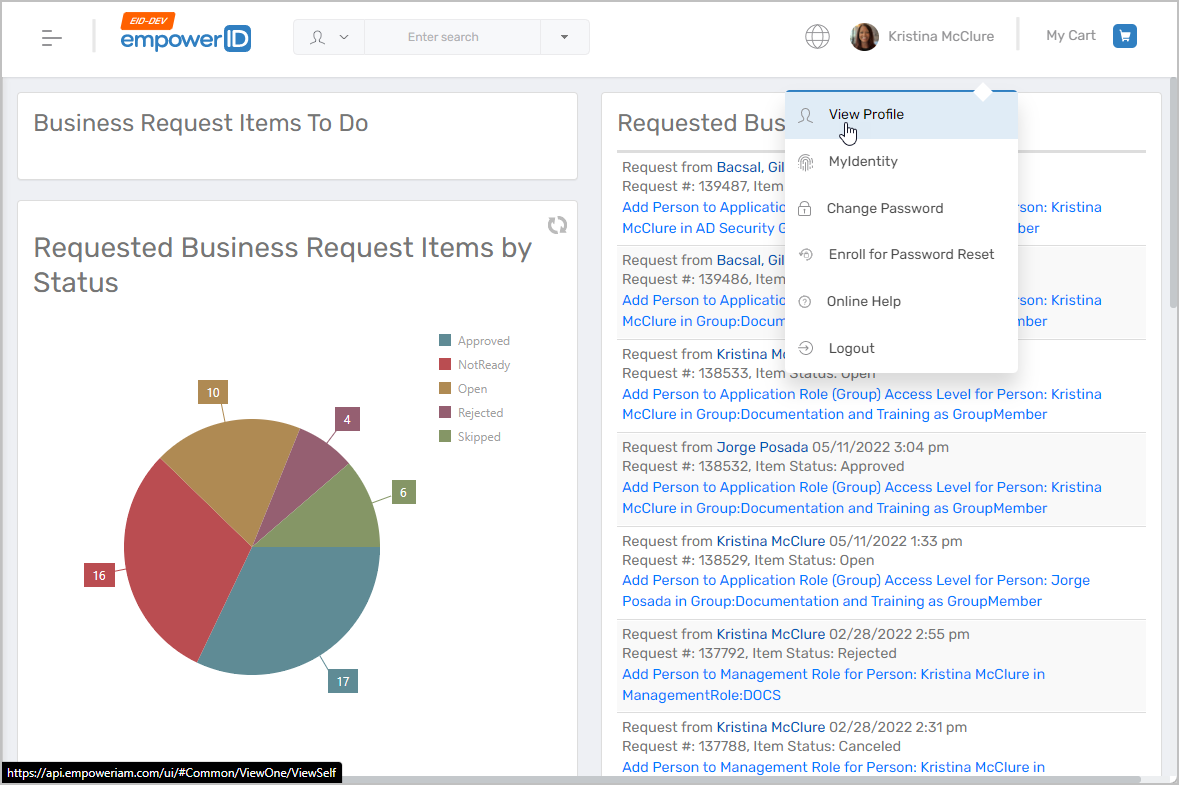
- Navigate to Privileged Access
- Click the Privileged Access tab.
- Expand the Secrets section.
- Click Change Master Password
- Click the Change Master Password button.
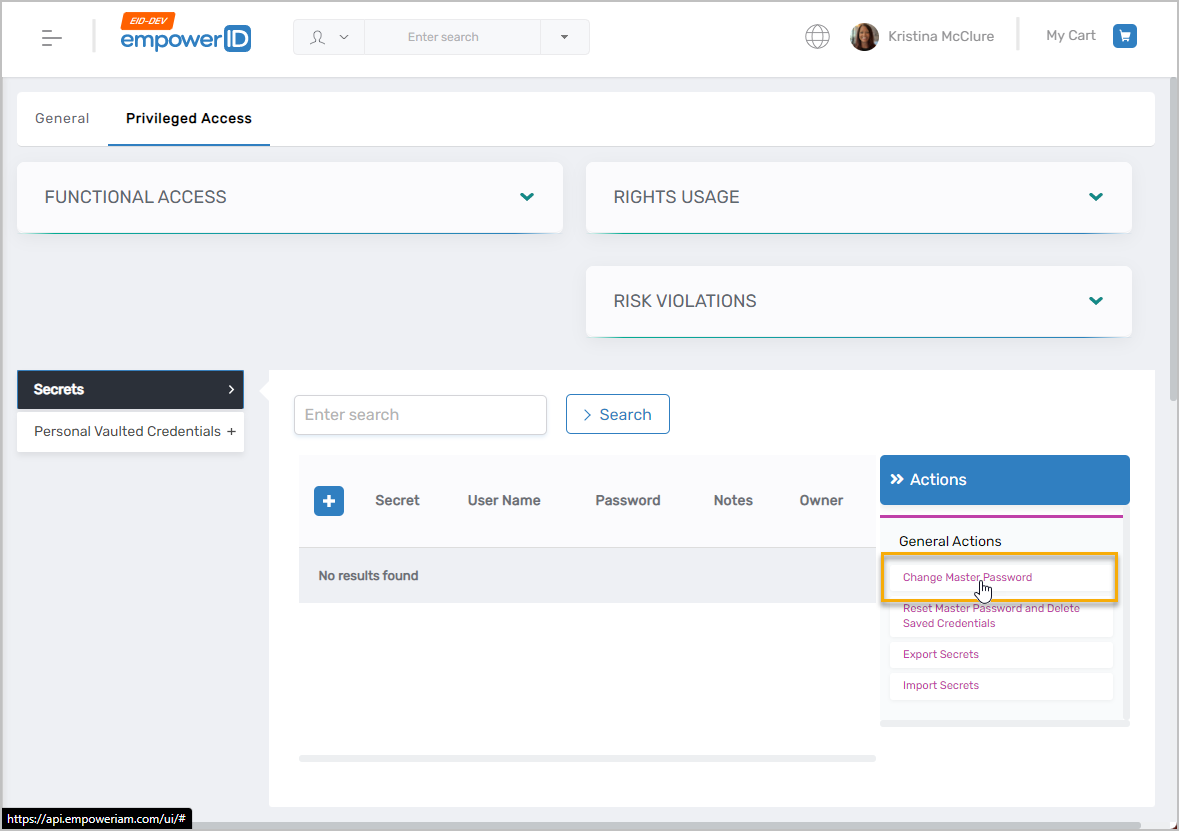
- Click the Change Master Password button.
- Enter Password Details
- In the dialog that appears, enter:
- Current Password: Your existing master password
- Password: Your new master password
- Confirm Password: Re-enter the new password to confirm
- In the dialog that appears, enter:
- Save the New Password
- Click OK to complete the update.
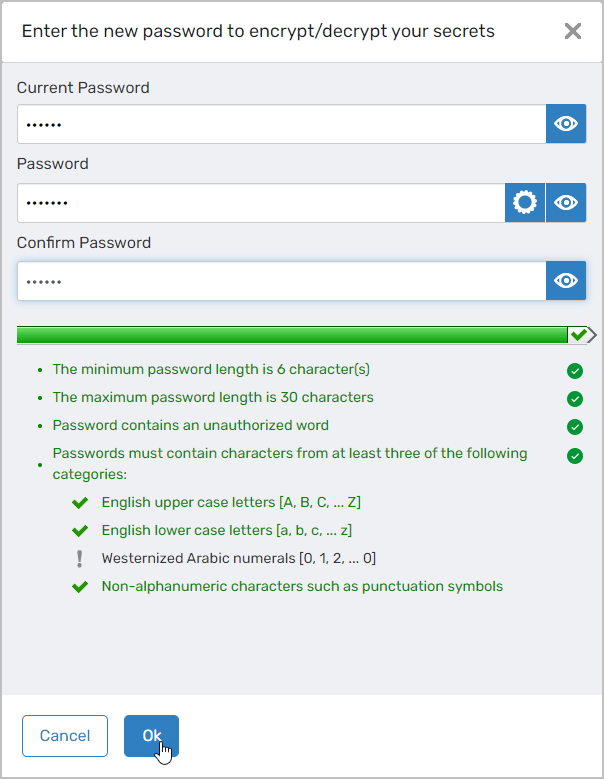
- Click OK to complete the update.
What Happens Next
Your encryption key pair remains unchanged, and your new master password will now be required for secure actions like:
- Viewing or creating secrets
- Checking out credentials
- Decrypting previously stored data
Choose a strong, unique master password that is different from your EmpowerID login password. Avoid reusing passwords across systems.