Create a Person
To invoke the API for executing operations or retrieving data required by your application, initiate a POST request to the corresponding endpoint. When creating new resources, such as an EmpowerID Person, send a POST request to the endpoint associated with the EmpowerID Workflow service, providing the necessary header and request data.
Prerequisites
For creating an EmpowerID Person, the required data is as follows:
Endpoint
https://{FQDN_OF_Your_EmpowerID_Web_Server}/api/services/v1/workflow/start
Headers
| Key | Value |
|---|---|
| X-EmpowerID-API-Key | The API key for the OAuth application you created above. |
| Content-Type | application/json |
| Authorization | Bearer token |
Request Data
Request data is sent to the API in JSON format. The data in the below request represents the minimum key/value pairs required for creating an EmpowerID Person. The API Reference includes all possible key/value pairs that can be submitted when creating people.
OutputParameters are optional, but are useful for viewing the results of the operation.
{
  "Name": "CreatePerson",
  "InputParameters":
  {
    "TargetPerson" :
    {
      "LastName": "Adams",
      "FirstName": "Samuel",
      "PrimaryOrgRoleOrgZoneID": "2"
    }
  },
  "OutputParameters": [{"TargetPerson": ["PersonID", "FirstName", "LastName"]}]
}
| Element | Description | Type | Required |
|---|---|---|---|
| Name | Name of the workflow | String | Required |
| InputParameters | Workflow input | Data Object | Required |
| TargetPerson | Attributes of the person | Data Object | Required |
| Firstname | First name of the person | String | Required |
| LastName | Last name of the person | String | Required |
| PrimaryOrgRoleOrgZoneID | Primary Business Role and Location of the person | Integer | Required |
| OutputParameters | Workflow output | Data Object | Optional |
Code Examples
In the examples, we are passing in the minimum number of parameters and requesting an output showing the PersonID, LastName and FirstName attributes of the person that is created by the operation.
C#
var url = "https://{FQDN_OF_Your_EmpowerID_Web_Server}/api/services/v1/workflow/start";
using (var webClient = new WebClient())
{
   webClient.Headers[HttpRequestHeader.Authorization] = String.Format(BearerHeaderFormat, {Your_Access_Token});
   webClient.Headers[ApiKeyHeader] = {Your_API_Key};
   webClient.Headers.Add(HttpRequestHeader.ContentType, "application/json");
   var workflowInput = new WorkflowInput {Name = "CreatePerson"};
   workflowInput.InputParameters["TargetPerson"] = new
   {
      FirstName = "Samuel";
      LastName = "Adams";
      PrimaryOrgRoleOrgZoneID = 2; //Temporary Role in Temporary Location
   };
   workflowInput.OutputParameters.Add(new { TargetPerson = new[] {"PersonGUID", "PersonID", FirstName", "LastName"}});
   var inputJsonData = Json.convert.SerializeObject(workflowInput);
   var jsonResult = webClient.UploadString(url, inputJsonData);

   //Write results to console if desired
   if(!String.IsNullOrWhiteSpace(jsonResult))
   {
      workflowOutput = JsonConvert.DeserializeObject<WorkflowOutput>(jsonResult);
      string results = workflowOutput.OutputParameters["TargetPerson"].ToString();
      Console.Write(results);
   }
}
cURL
Be sure to use double quotes unless you are making the request from a non-Windows OS.
curl "https://{FQDN_Of_Your_EmpowerID_Web_Server}/api/services/v1/workflow/start" \
-X POST \
-H "X-EmpowerID-API-Key: {Your_API_Key} \
-H "Authorization: Bearer {OAuth_token_you_received_from_EmpowerID}" \
-H "Content-Type: application/x-www-form-urlencoded" \
-d "{ \"Name\": \"CreatePerson\", \"InputParameters\": {\"TargetPerson\":{\"LastName\"" \"Adams\",
\"FirstName\": \"Samuel\", \"PrimaryOrgRoleOrgZoneID\" \"2\" }}, \"OutputParameters\": [{\"TargetPerson\":
[\"PersonID\", \"FirstName\", \"LastName\"]}]}"
Ajax
$.ajax({
  url: "https://{FQDN_OF_Your_EmpowerID_Web_Server}/api/services/v1/workflow/start",
  type: "POST",

 headers: {
    "X-EmpowerID-API-Key": "{Your_API_Key}",
    "Content-Type": "application/json",
    "Authorization": "Bearer {OAuth_token_you_received_from_EmpowerID
    }
  },

  data: JSON.stringify({
    "Name": "CreatePerson",
        "InputParameters":
        {
            "TargetPerson": {
            "FirstName": "Adams",
            "LastName" : "Samuel",
            "PrimaryOrgRoleOrgZoneID": "4980"
        }
    },
    "OutputParameters": [{"TargetPerson": ["PersonID", "FirstName", "LastName"]}]

  })
})
Response
If the request is successful, you should receive a JSON response that looks similar to that below:
{
  "Id": 0,
  "Name": "CreatePerson",
  "InstanceId": "db14de5f-b8e4-4e61-a6a5-d17030e4a44f",
  "CorrelationId": "00000000-0000-0000-0000-000000000000",
  "UIType": "None",
  "UIName": "",
  "UIData": null,
  "OutputParameters": {
    "TargetPerson": {
      "PersonID": 402,
      "FirstName": "Samuel",
      "LastName": "Adams"
    }
  },
  "OutputTaskParameters": null,
  "WorkflowState": "Completed",
  "DeferredUntil": "0001-01-01T00:00:00",
  "Error": null
}
Postman Example
-
Open the Postman app on your machine.
-
In Postman, open a new tab, select POST as the HTTP method and enter
https://{FQDN_Of_Your_EmpowerID_Web_Server}/api/services/workflow/start. -
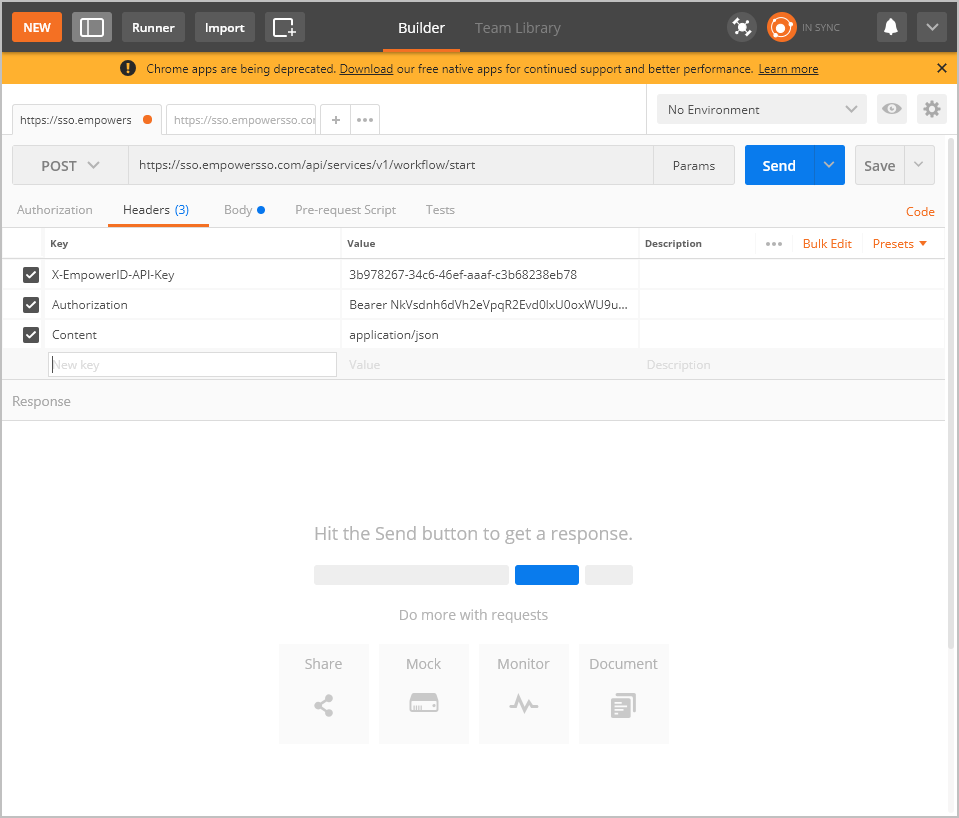
Click the Headers tab and add the above mentioned key/value pairs.
-
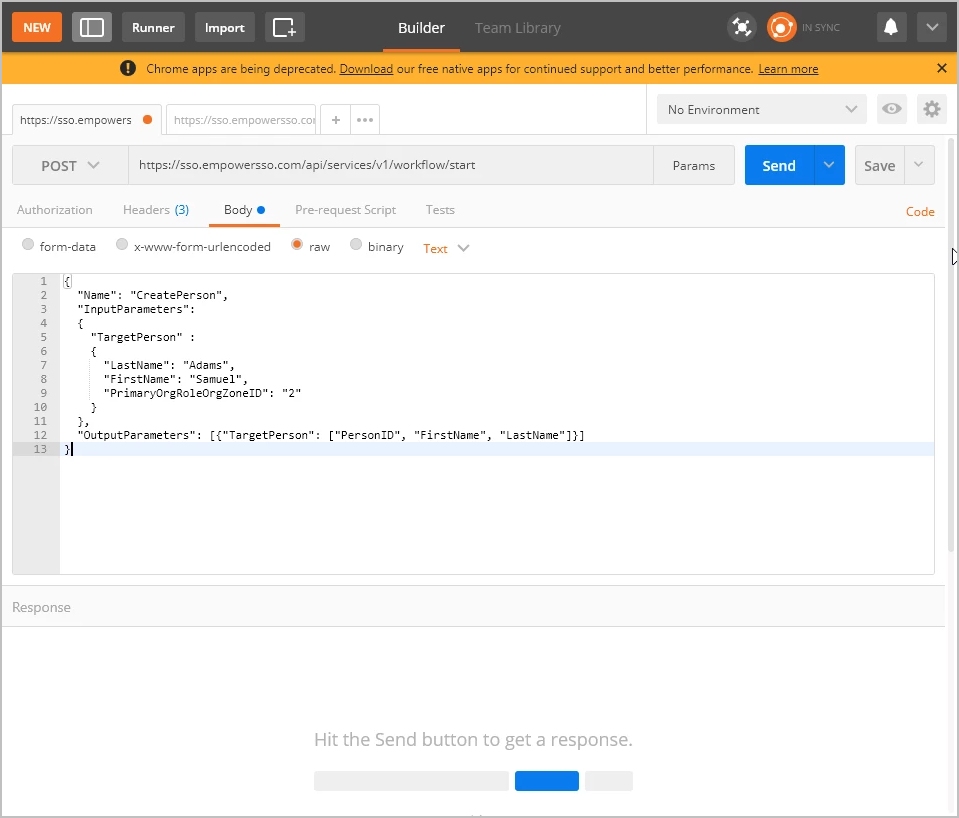
Click the Body tab, select raw, and then add the below JSON:
{
  "Name": "CreatePerson",
  "InputParameters":
  {
    "TargetPerson" :
    {
      "LastName": "Adams",
      "FirstName": "Samuel",
      "PrimaryOrgRoleOrgZoneID": "2"
    }
  },
  "OutputParameters": [{"TargetPerson": ["PersonID", "FirstName", "LastName"]}]
}
- Click Send.
If the request is successful, you should receive a JSON response that looks similar to that shown below.
{
  "Id": 0,
  "Name": "CreatePerson",
  "InstanceId": "db14de5f-b8e4-4e61-a6a5-d17030e4a44f",
  "CorrelationId": "00000000-0000-0000-0000-000000000000",
  "UIType": "None",
  "UIName": "",
  "UIData": null,
  "OutputParameters": {
    "TargetPerson": {
      "PersonID": 381,
      "FirstName": "Samuel",
      "LastName": "Adams"
    }
  },
  "OutputTaskParameters": null,
  "WorkflowState": "Completed",
  "DeferredUntil": "0001-01-01T00:00:00",
  "Error": null
}