Get an Access Token
After registering an OAuth application in EmpowerID, the next step for working with the API is to use the credentials generated for that application – which consists of the API Key, the Client ID and the Client Secret – to get an access token. The access token is what authorizes you to make API calls. The resources that can be manipulated vary, depending on the Access Levels associated with the application user. Access tokens can be issued as OAuth 2.0 tokens or JWT tokens. In this topic, we demonstrate getting an OAuth 2.0 token.
Token Expiration Time
The default expiration time for JWT and access tokens is 3600 seconds. You can change this value in the Token Expiration (in seconds) field on the application. To do so:
- On the navbar, expand Admin, then SSO Connections, and click OAuth.
- Open the Application Details for the application and click the Edit button.
- On the General tab, you can find the setting in the OAuth Application Details section.
How to Get an Access Token
To get an access token, you need to make a POST request to https://<Your_EmpowerID_Web_Server>/oauth/v2/token with the following header and data value pairs:
Headers
| Key | Value |
|---|---|
| Authorization | Basic base64(username:password) of the EmpowerID Person requesting the token |
| Content-Type | application/json |
Request Data
Request data is sent to the API in JSON format:
{
  "client_id": "{The Client ID of the OAuth app you created above}",
  "client_secret": "{The Client Secret of the OAuth app you created above}",
  "grant_type": "password"
}
Response
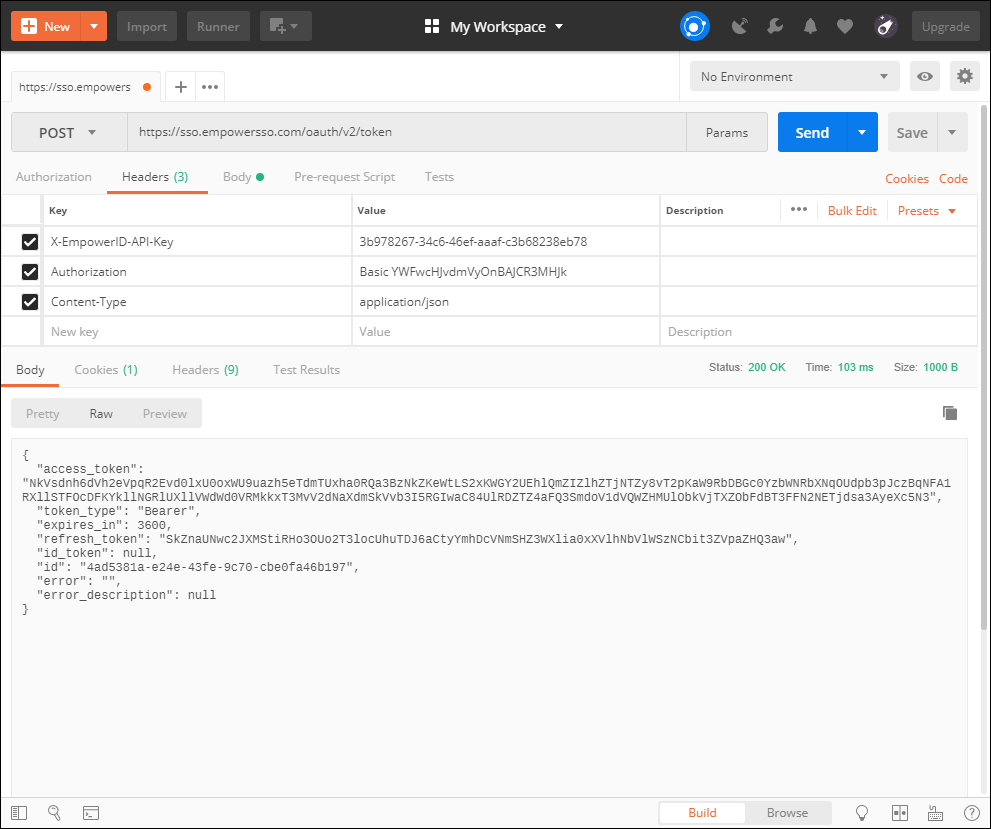
If the request is successful, you should receive a JSON response that looks similar to the following:
{
   "access_token": "WER1RFdjUVF1OE52ekdWZjJIQjMzSHVqcERQT0p5c...aZW",
   "token_type": "Bearer",
   "expires_in": 3600,
   "refresh_token": "YnQrRHhuyYmNidzY3MTFSVnE1Q1BLN1RuZ1liOH...WQ==",
   "id_token": "null",
   "error": "",
   "error_description": "null"
}
Code Examples
Using the .NET Client Library
-
Initialize
ClientSettingsby passing theclient_id,client_secret,redirect_uri,token_endpoint,authorization_endpoint,tokeninfo_endpointanduserinfo_endpoint. Also initialize a newResourceOwnerPasswordGrantby passing theclientSettingsmodel.var clientSettings = new ClientSettings(
"client_id",
"client_secret",
"redirect_uri",
"https://<EID Server>/oauth/v2/token",
"https://<EID Server>/oauth/v2/ui/authorize");
var handler = new ResourceOwnerPasswordGrant(clientSettings); -
Call the
GetAccessToken()method to retrieve theaccess_tokenandrefresh_token:AccessTokenResponseModel responseModel = null;
try
{
responseModel = handler.GetAccessToken<AccessTokenResponseModel>
(RequestMethod.POST,
ParameterFormat.Json,
Username,
Password);
}
catch (Exception e)
{
//Handle error
}
var accessToken = responseModel.AccessToken;
var refreshToken = responseModel.RefreshToken;
cURL
When using cURL, be sure to use double quotes unless you are making the request from a non-Windows OS.
curl "https://{FQDN_Of_Your_EmpowerID_Web_Server}/oauth/v2/token" \
-H "Authorization: Basic {base64_encoded_value_of_the_EmpowerID_Person_username_and_password}" \
-H "Content-Type: application/x-www-form-urlencoded" \
-d "grant_type=password&client_id={Your_Client_ID}&client_secret={Your_Client_Secret}"
Ajax
var auth = btoa("EmpowerID_Person_Username:EmpowerID_Person_Password")
$.ajax({
  url: "https://{FQDN_Of_Your_EmpowerID_Web_Server}/oauth/v2/token",
  type: "POST",

  headers: {
    "Content-Type": "application/json",
    "Authorization": "Basic " + auth
  },

  data: JSON.stringify({
  "client_id": "Your_Client_ID",
  "client_secret": "Your_Client_Secret",
  "grant_type": "password"
  })
});
Postman Example
-
Open the Postman app on your machine.
-
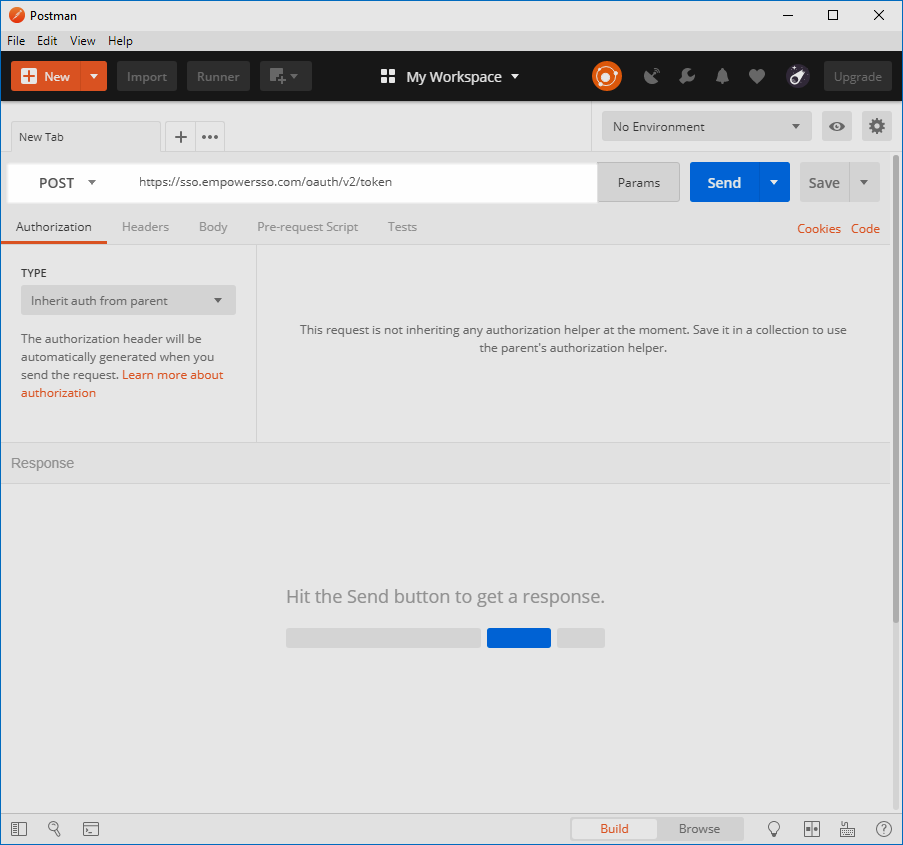
In Postman, open a new tab, select POST as the HTTP method and enter
https://{FQDN_Of_Your_EmpowerID_Web_Server}/oauth/v2/token.
-
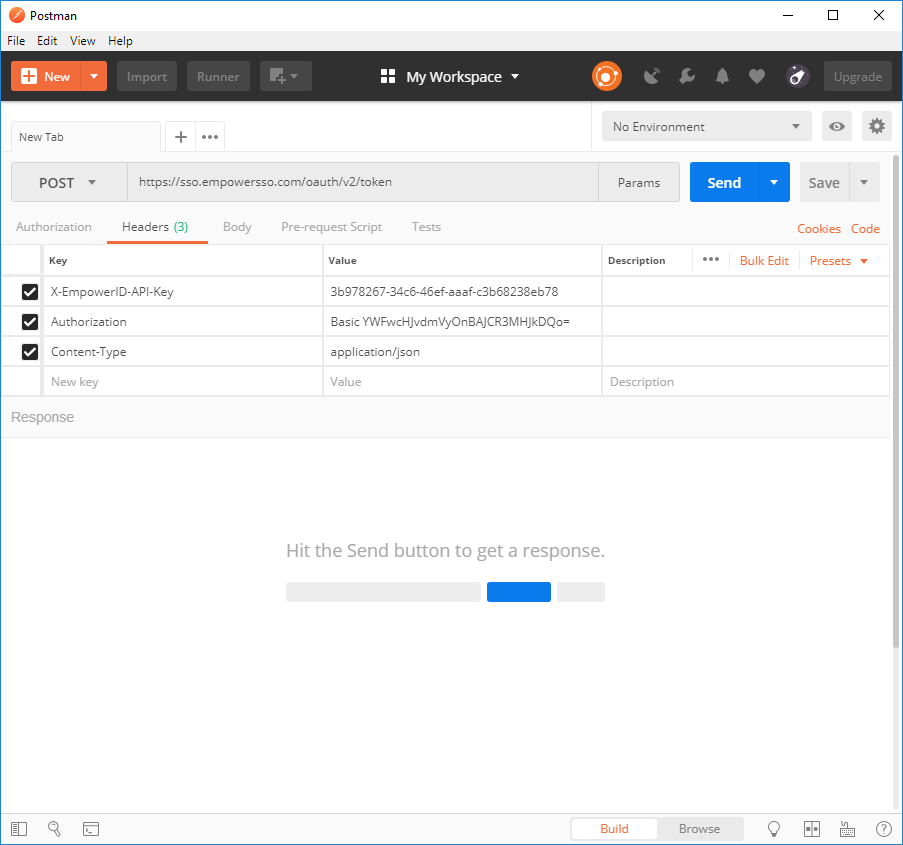
Select the Headers tab add the above mentioned key/value pairs.
-
Select the Body tab, click raw and then add the below JSON:
{
  "client_id": "{Your_Client_ID}",
  "client_secret": "{Your_Client_Secret}",
  "grant_type": "password"
} -
Click Send. If the request is successful, you should receive a JSON response with the access token and refresh token.