Creating Role Definitions
Role Definitions bundle multiple app rights into reusable groups, enabling efficient access management across PBAC-enabled applications. By grouping rights that represent common job functions or responsibilities, administrators can streamline access assignments and reduce administrative overhead.
Role Definitions provide a structured way to grant multiple related app rights as a single package. This simplifies access management when users need consistent sets of permissions. For more information on how rights and roles work in PBAC, see About EmpowerID PBAC.
This article demonstrates how to create Role Definitions in EmpowerID.
Prerequisites
Before creating Role Definitions, ensure you have:
- Access to Resource Admin with the Application RBAC Owner Management Role (or higher)
- An existing PBAC application with app rights available for inclusion in the role definition
Procedure
-
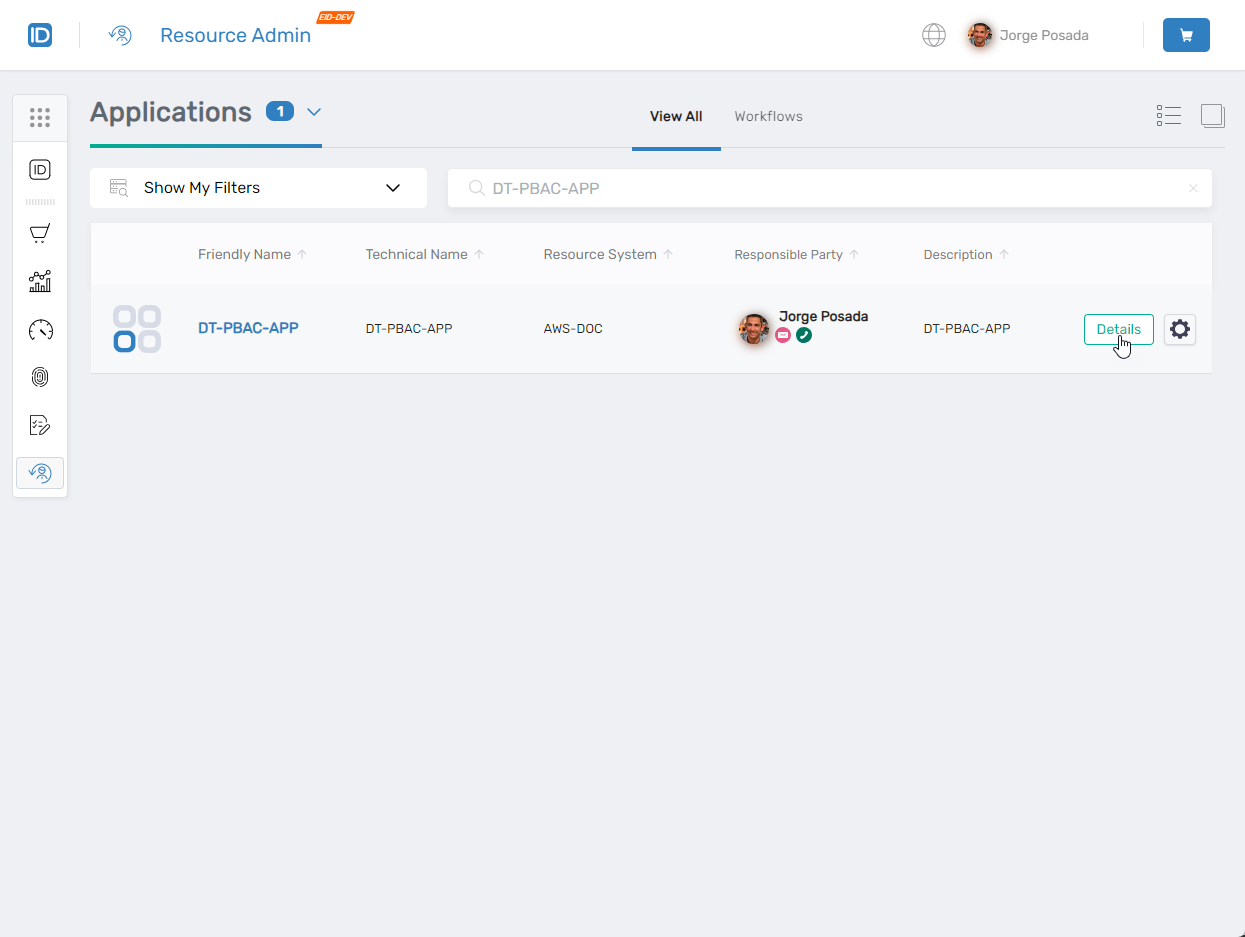
In Resource Admin, search for the PBAC application for which you want to create Role Definitions.
-
Click the Details button for the application to open the Application Overview page.
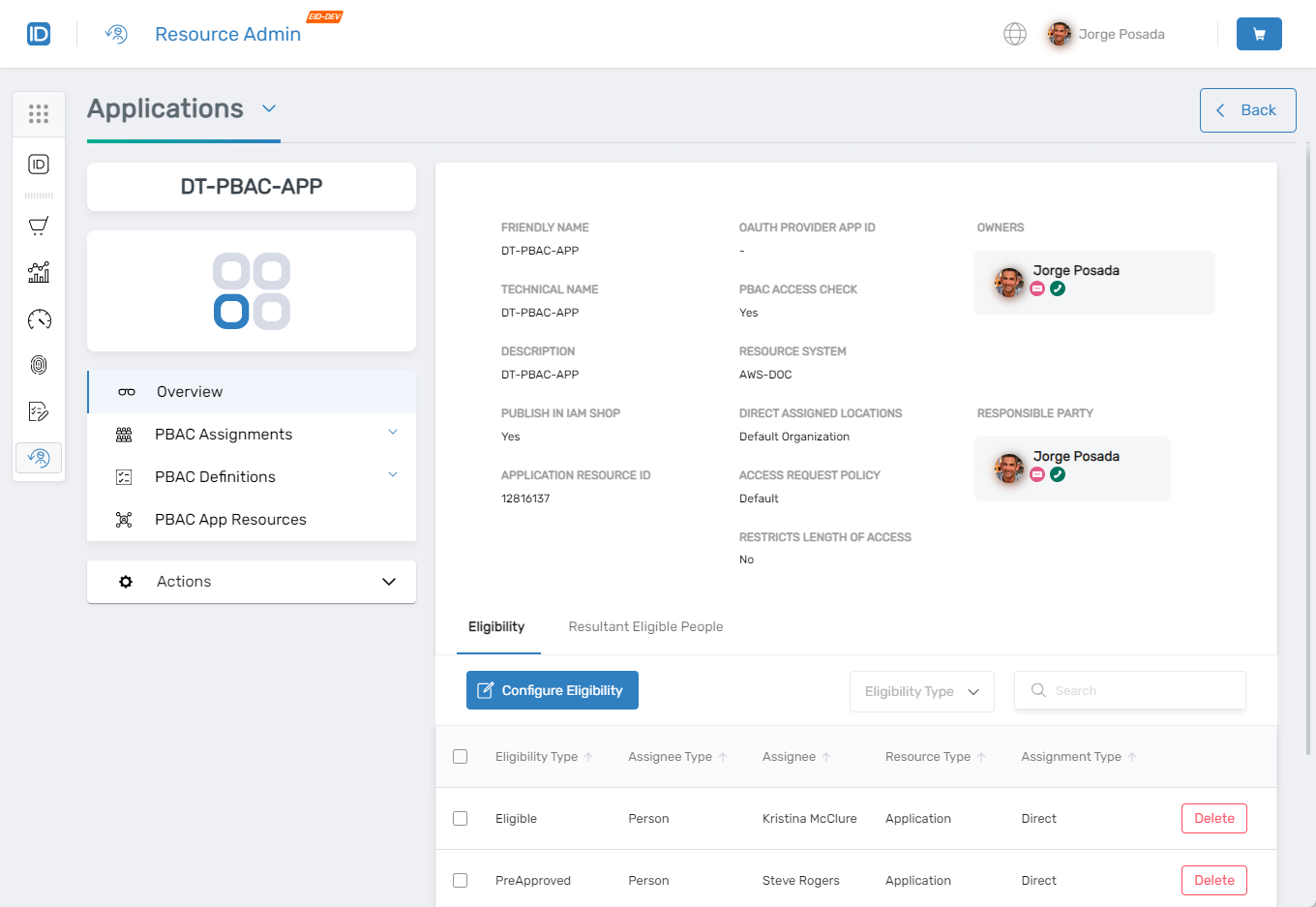
The Application Overview page opens.
-
Expand PBAC Definitions in the left navigation and select Role Definitions.
-
Click Create Role Definition.

The Onboard Az Local Role wizard opens.
-
Complete the wizard sections with the appropriate information for the role definition.
Role Definition Information
Field Action Name Enter a unique internal name without spaces. Display Name Enter a user-friendly label. Description Enter a description of the role definition. Instructions (Optional) Enter guidance or usage information. Location Select the EmpowerID location where the role definition applies. App Rights Options Choose whether to assign app rights now or later. Owner Information
Field Description Action Responsible Party Primary accountable person Enter the responsible party's name (required). Owners Governance owners Enter owner names (optional). Deputies Backup approvers or contributors Enter deputy names (optional). IAM Shop Settings
Field Description Action Requestable in IAM Shop Makes the role definition visible for self-service requests Enable or disable as needed. Access Request Policy Defines the approval policy for requests Select the appropriate access policy. Eligible to Request Defines eligible requestors Select assignee types (e.g., Person, Group). Pre-approved for Access Automatically grants access to specified users Define pre-approved users or groups. Suggested Assignees Shows the role definition as recommended for certain users Configure assignee suggestions. -
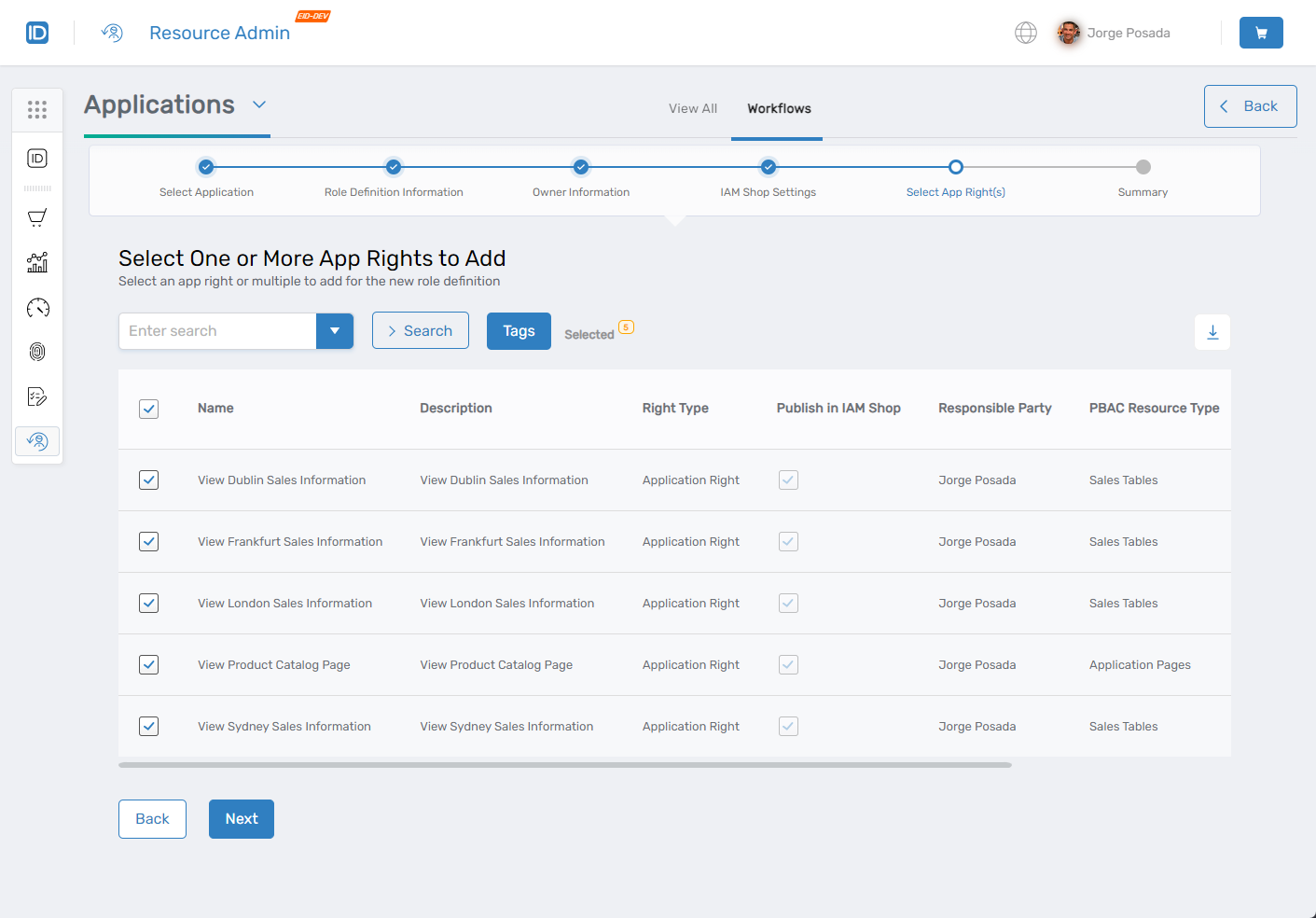
(Optional) If you chose to assign app rights in the wizard, select the applicable app rights and click Next.
-
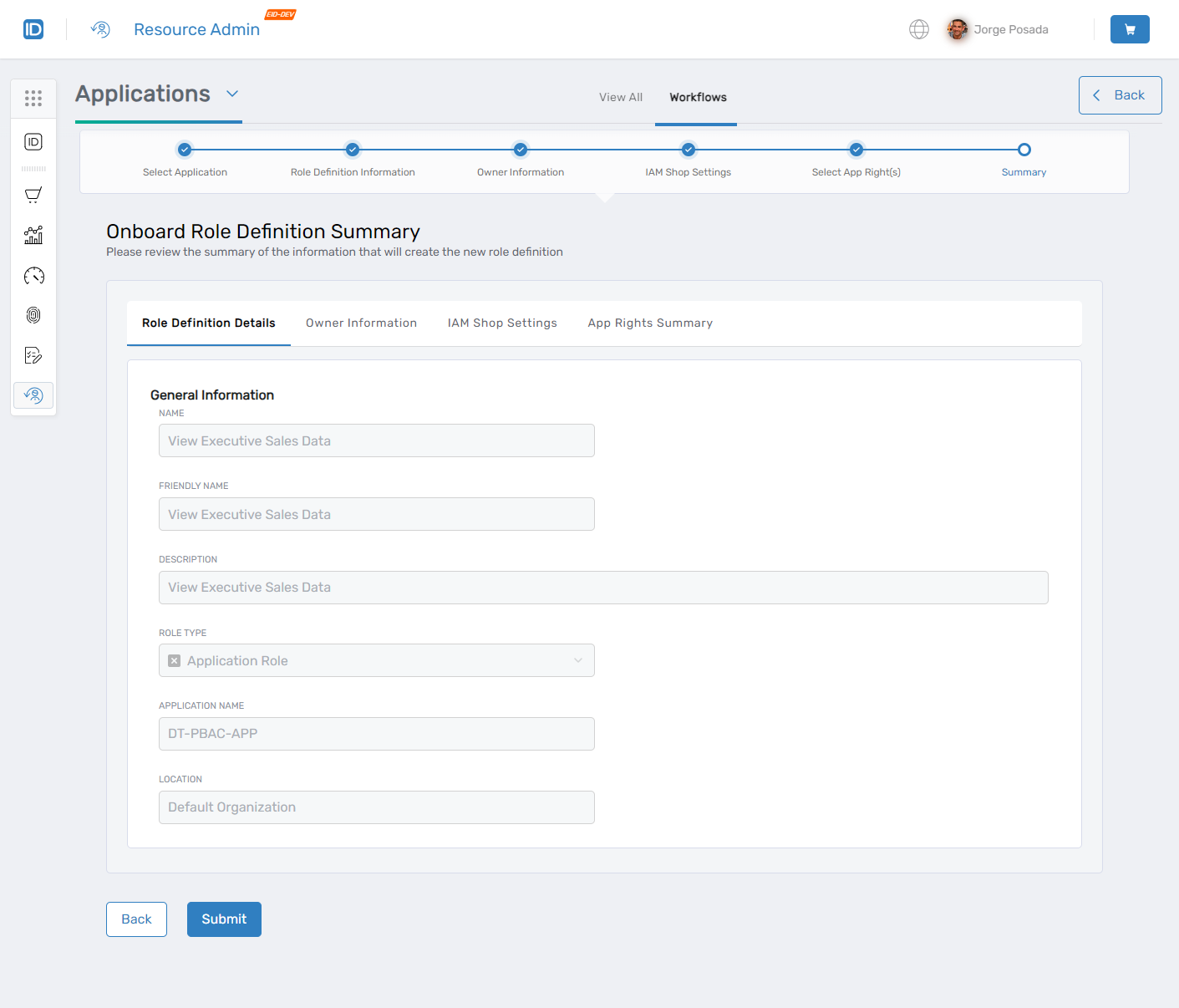
Review the summary for accuracy. Use the Back button to make corrections if needed.
-
Click Submit to finalize the role definition.
-
Repeat steps 1-8 to create additional role definitions for the application as needed.
Verify the Results
After submission:
- The new role definition appears in the Role Definitions list for the application.
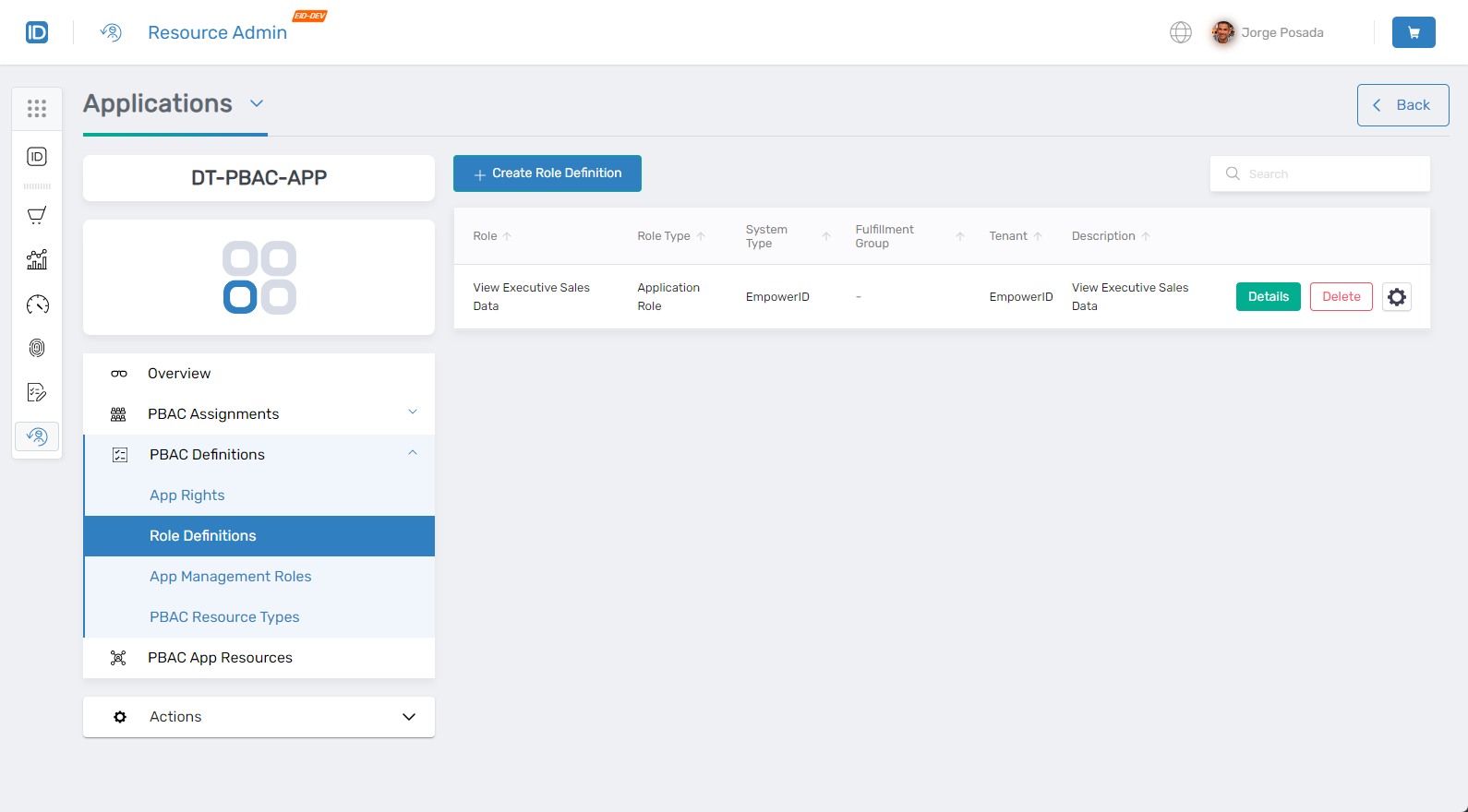
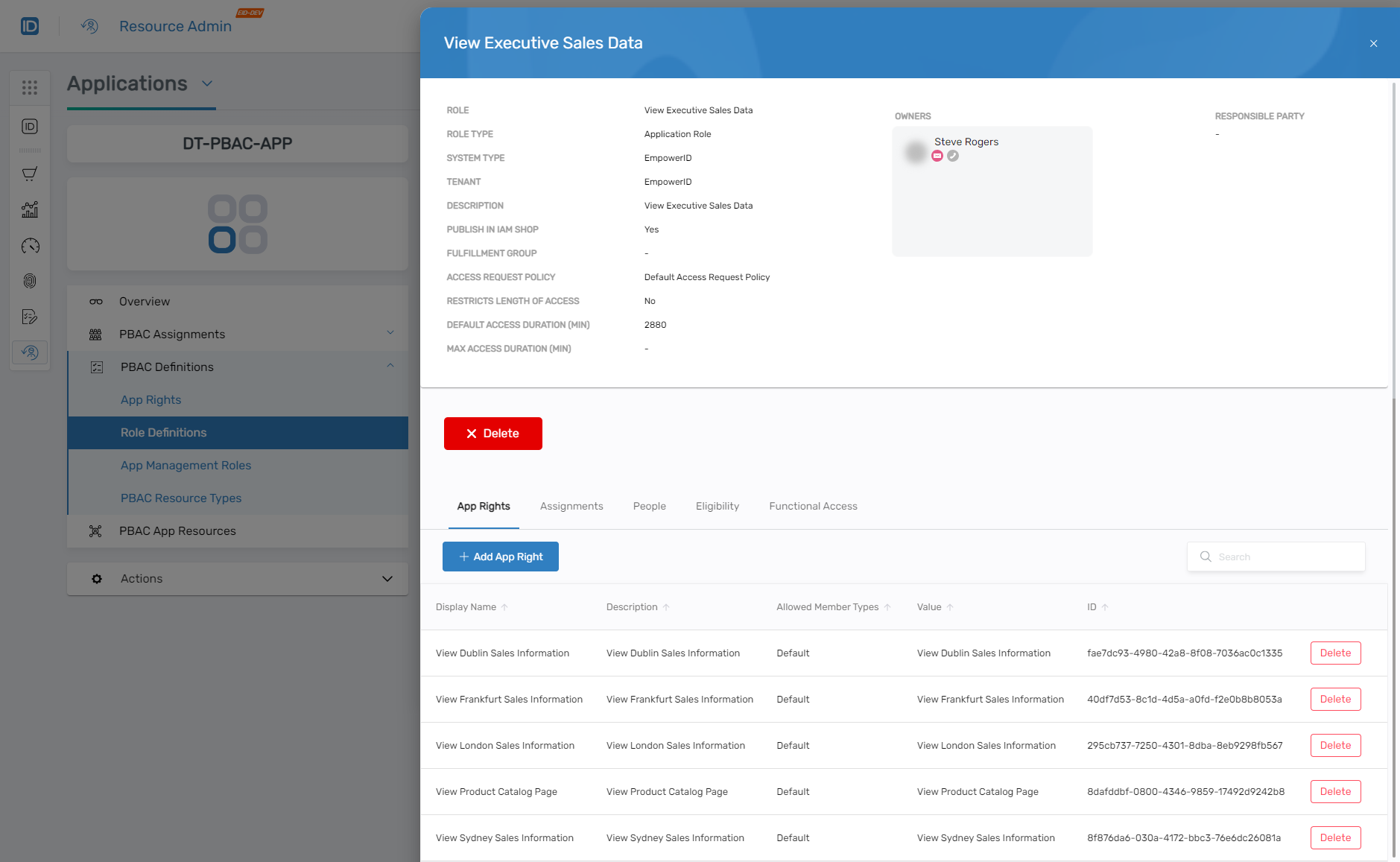
- Click the Details button to view or manage app rights assigned to the role definition.
Next Steps
After creating role definitions, assign them to users or groups who need the bundled set of app rights.