Create External Roles and Locations Policies
External Roles and Locations policies automatically generate external Business Roles and Locations based on specified person attribute values, such as department name. When the policy runs, the Dynamic Hierarchy engine adds people with matching attribute values to the corresponding Role and Location.
Prerequisites
To create Dynamic Hierarchy policies, you need appropriate permissions to access and configure Dynamic Hierarchies in EmpowerID.
Create an External Roles and Locations Policy
-
On the navbar, expand Dynamic Hierarchies and select Policies.
-
Click the Add (+) button.
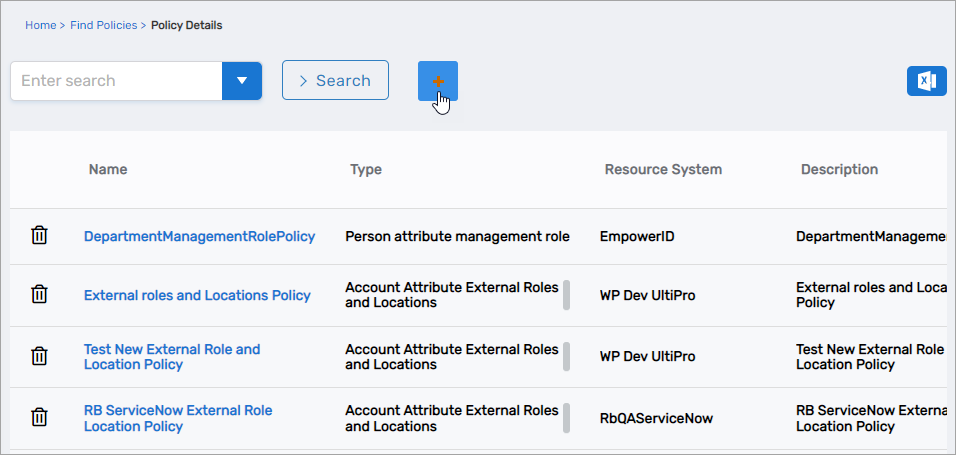 The Policy Details form opens.
-
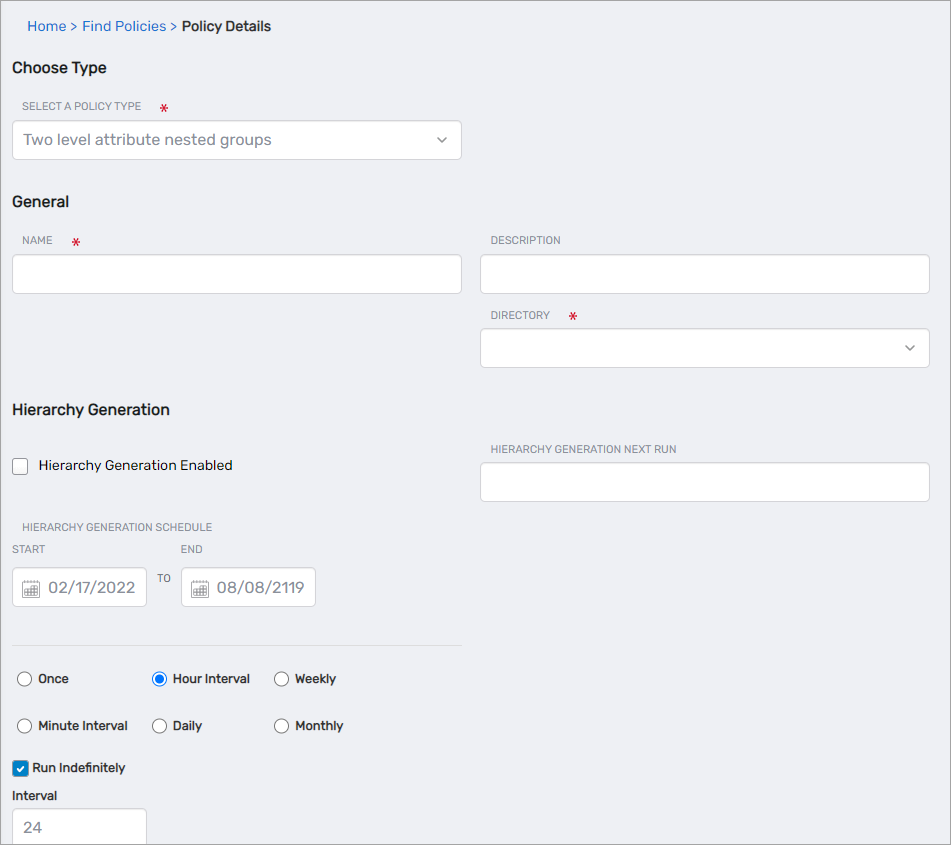
In the General section, configure:
- Select a Policy Type – Select Account Attribute External Roles and Locations
- Name – Enter a name for the policy
- Description – Enter a description for the policy
- Directory – Select the account store where the groups are to be created
-
Configure the Hierarchy Generation schedule.
View Hierarchy Generation Settings
-
Hierarchy Generation Enabled – Select this option to enable EmpowerID to generate hierarchies from the policy
-
Hierarchy Generation Next Run – Click the field and select the date and time for the next run of the Hierarchy Generation job
-
Hierarchy Generation Schedule – Set the start and end dates for hierarchy generation to occur
-
Hierarchy Generation Interval – Set the interval for the Hierarchy Generation job to process the policy:
-
Once – Hierarchy generation occurs one time
-
Minute Interval – Hierarchy generation occurs "X" times every "Y" minutes as specified in the Run Indefinitely, Iterations and Interval fields. For example, if you select an iteration of 2 and an interval of 24, hierarchy generation occurs twice: first at the date and time specified in the Hierarchy Generation Next Run field, and again 24 minutes after the first run completes. If you select Run Indefinitely with an interval of 24, hierarchy generation occurs once every 24 minutes, indefinitely.
-
Hour Interval – Hierarchy generation occurs "X" times every "Y" hours as specified in the Run Indefinitely, Iterations and Interval fields. For example, if you select an iteration of 2 and an interval of 24, hierarchy generation occurs twice: first at the specified date and time, and again 24 hours after the first run completes. If you select Run Indefinitely with an interval of 24, hierarchy generation occurs once every 24 hours, indefinitely.
-
Daily – Hierarchy generation occurs once every "X" days at a designated time as specified in the Run Indefinitely, Iterations and Times fields. For example, if you select an iteration of 2, hierarchy generation occurs twice: first at the specified date and time, and again on the following day at the time specified in the Times field. If you select Run Indefinitely, hierarchy generation occurs daily at the time specified in the Times field.
-
-
-
Configure the Membership Recalculation schedule.
View Membership Recalculation Settings
-
Membership Recalculation Enabled – Select this option to enable the system to update role membership as specified by the schedule and interval
-
Membership Recalculate Next Run – Set the date and time for the next run of the Dynamic Hierarchy Membership Recalculation job
-
Membership Recalculation Schedule – Set the start and end dates for membership recalculation to occur
-
Membership Recalculation Interval – Set the interval for membership recalculation to run:
-
Once – Membership recalculation occurs one time
-
Minute Interval – Membership recalculation occurs "X" times every "Y" minutes as specified in the Run Indefinitely, Iterations and Interval fields. For example, if you select an iteration of 2 and an interval of 24, membership recalculation occurs twice: first at the date and time specified in the Membership Recalculate Next Run field, and again 24 minutes after the first run completes. If you select Run Indefinitely with an interval of 24, membership recalculation occurs once every 24 minutes, indefinitely.
-
Hour Interval – Membership recalculation occurs "X" times every "Y" hours as specified in the Run Indefinitely, Iterations and Interval fields. For example, if you select an iteration of 2 and an interval of 24, membership recalculation occurs twice: first at the specified date and time, and again 24 hours after the first run completes. If you select Run Indefinitely with an interval of 24, membership recalculation occurs once every 24 hours, indefinitely.
-
Daily – Membership recalculation occurs once every "X" days at a designated time as specified in the Run Indefinitely, Iterations and Times fields. For example, if you select an iteration of 2, membership recalculation occurs twice: first at the specified date and time, and again on the following day at the time specified in the Times field. If you select Run Indefinitely, membership recalculation occurs daily at the time specified in the Times field.
-
-
-
In the Policy Settings section, configure:
- External Role Level 1 – Specify the attribute to use for generating the parent external role
- External Location Level 1 – Specify the attribute to use for generating the parent external location
- External Role Level 2 – If nesting roles, specify the attribute to use for generating the first child external role
- External Location Level 2 – If nesting locations, specify the attribute to use for generating the first child external location
- External Role Level 3 – If nesting roles, specify the attribute to use for generating the second child external role
- External Location Level 3 – If nesting locations, specify the attribute to use for generating the second child external location
- Claim Matching Roles – Select to allow the Dynamic Hierarchy engine to claim any matching roles in the system as Dynamic Hierarchy generated roles
- Claim Matching Locations – Select to allow the Dynamic Hierarchy engine to claim any matching locations in the system as Dynamic Hierarchy generated locations
- Role Assignment Removal Delay (Minutes) – Specify the time in minutes that the engine should wait to remove users who no longer meet the criteria for Role and Location assignments
- Empty Role Action – Specify the action EmpowerID should take if a generated role no longer contains any users (options: No Action, Delete)
- Empty Location Action – Specify the action EmpowerID should take if a generated location no longer contains any users (options: No Action, Delete)
- Level 1 Naming Convention
{Value1}– At a minimum enter{Value1}. EmpowerID creates a dynamic Role and Location for each attribute matching the value selected from the External Role Level 1 and External Location Level 1 fields. For example, if you selected the JobTitle attribute for the external role and Department for the external location, an external role is created for each unique job title and an external location is created for each department. - Level 2 Naming Convention
{Value1}{Value2}– If nesting roles and locations, enter{Value1}{Value2}for the first child. EmpowerID creates a dynamic Role and Location under the parent Role and Location for each attribute matching the values selected from the External Role Level 2 and External Location Level 2 fields. - Level 3 Naming Convention
{Value1}{Value2}{Value3}– If nesting roles and locations, enter{Value1}{Value2}{Value3}for the second child. EmpowerID creates a dynamic Role and Location under the first child Role and Location for each attribute matching the values selected from the External Role Level 3 and External Location Level 3 fields.
-
Click Save.
Results
After creating and running the policy:
- External Business Roles and Locations are automatically created based on the specified attributes
- People with matching attribute values are automatically assigned to the corresponding Roles and Locations
- If nesting is configured, child Roles and Locations are created under their parents
- As attribute values change in the authoritative source, role and location assignments are automatically updated
- Empty roles and locations are handled according to the configured actions
- Role and location removal is delayed by the configured number of minutes
Related Topics
- About Dynamic Hierarchies – Overview of Dynamic Hierarchies capabilities
- Person Attribute Management Roles – Create Management Roles based on attributes
- Two-Level Management Roles – Create nested Management Role structures