Register an application for the MS Online Microservice in EntraID
The MS Online microservice uses EntraID authentication to call the Azure API. For this to occur, you need an application (service principal) registered for EmpowerID in your Azure Active Directory. If you do not already have one, you need to do so. This topic takes you through the steps.
Procedure
-
Log in to your Azure portal as a user with the necessary permissions to create an application in EntraID.
-
In Azure, navigate to your Azure Active Directory.
-
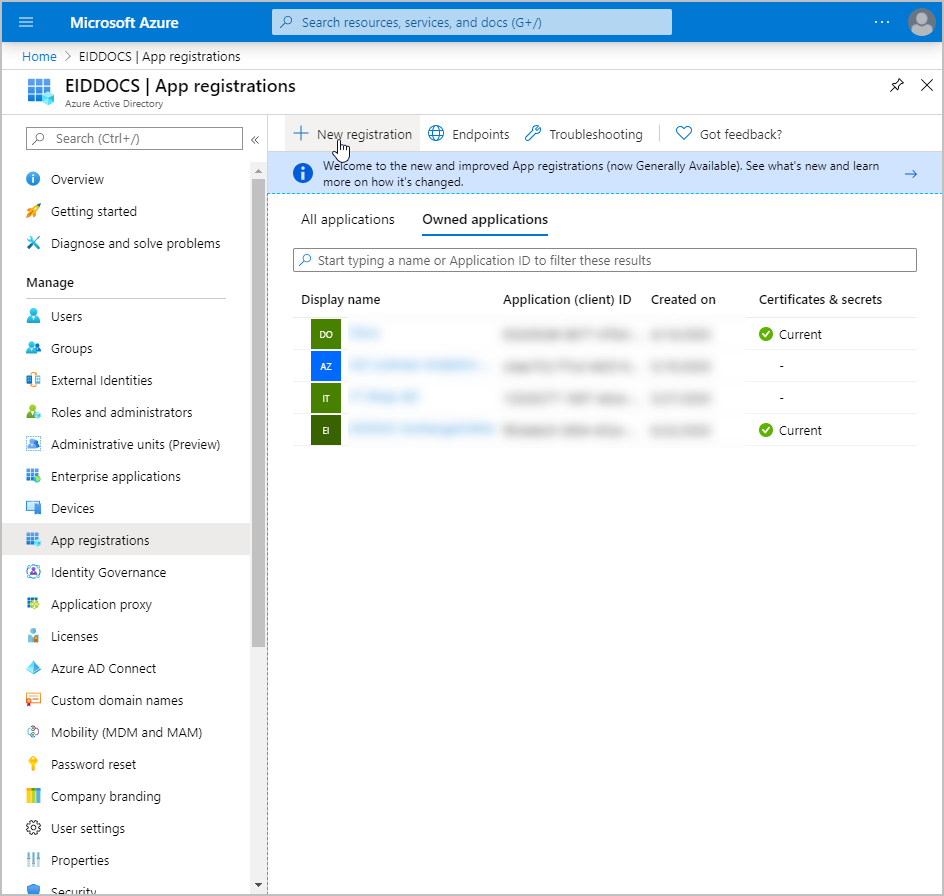
On the Azure Active Directory navbar, click App registrations.
-
On the App registrations page, click New registration.
-
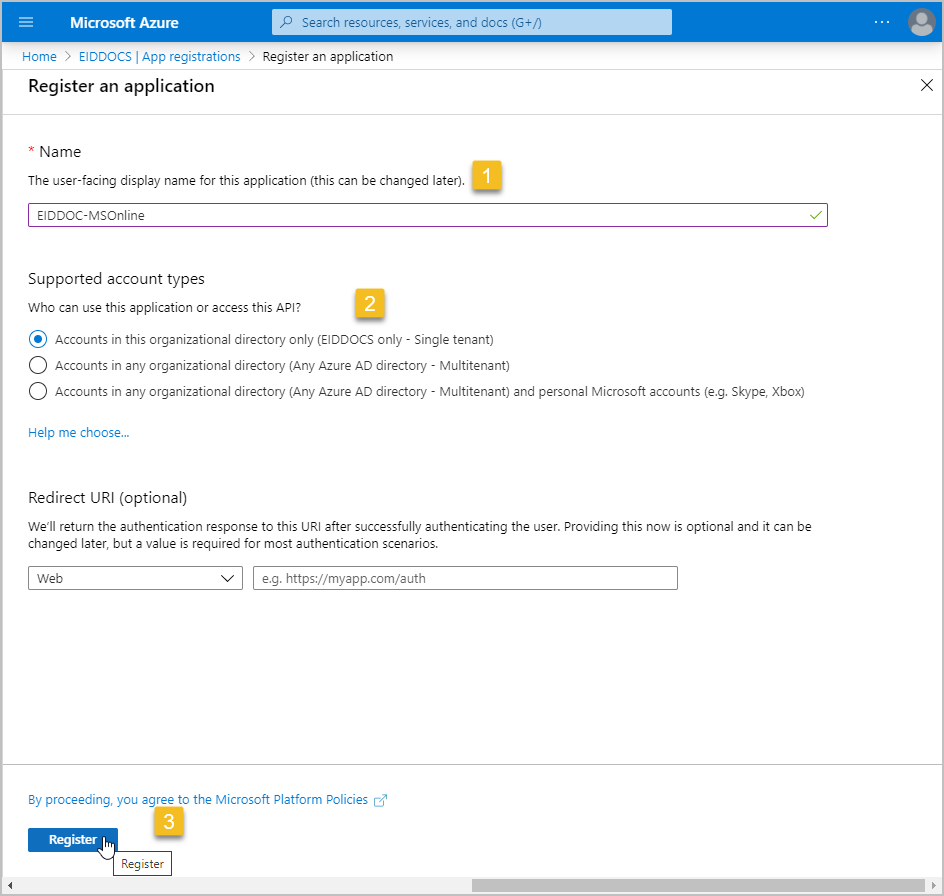
Name the application, select the scope for the application (single or multitenant) and click Register.
-
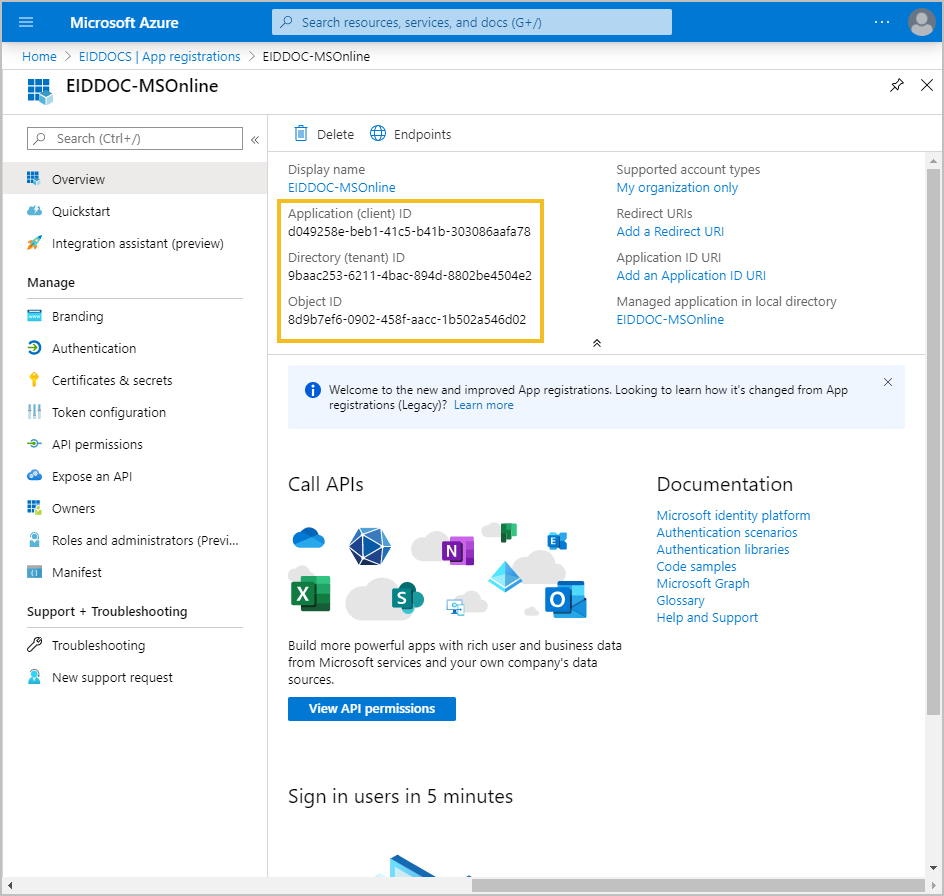
Once the application is registered, click Overview and copy the Application (client) ID, Directory (tenant) ID and Object ID from the application page. These values are used later to to configure AD authentication for the MS Online App service.
The next step is to upload the base-64 encoded certificate that you have selected to authenticate to the application.
infoThe public key certificate that you upload to Azure must have a corresponding private key in the EmpowerID certificate store; otherwise, an error will occur when calling Azure’s API.
tipIf you don’t have a certificate to use for authentication, you can create a self-signed certificate from IIS and export the certificate as .cert, .pem, or .crt format. For help with these tasks, see https://aboutssl.org/how-to-create-a-self-signed-certificate-in-iis/ and https://support.globalsign.com/ssl/ssl-certificates-installation/import-and-export-certificate-microsoft-windows.
-
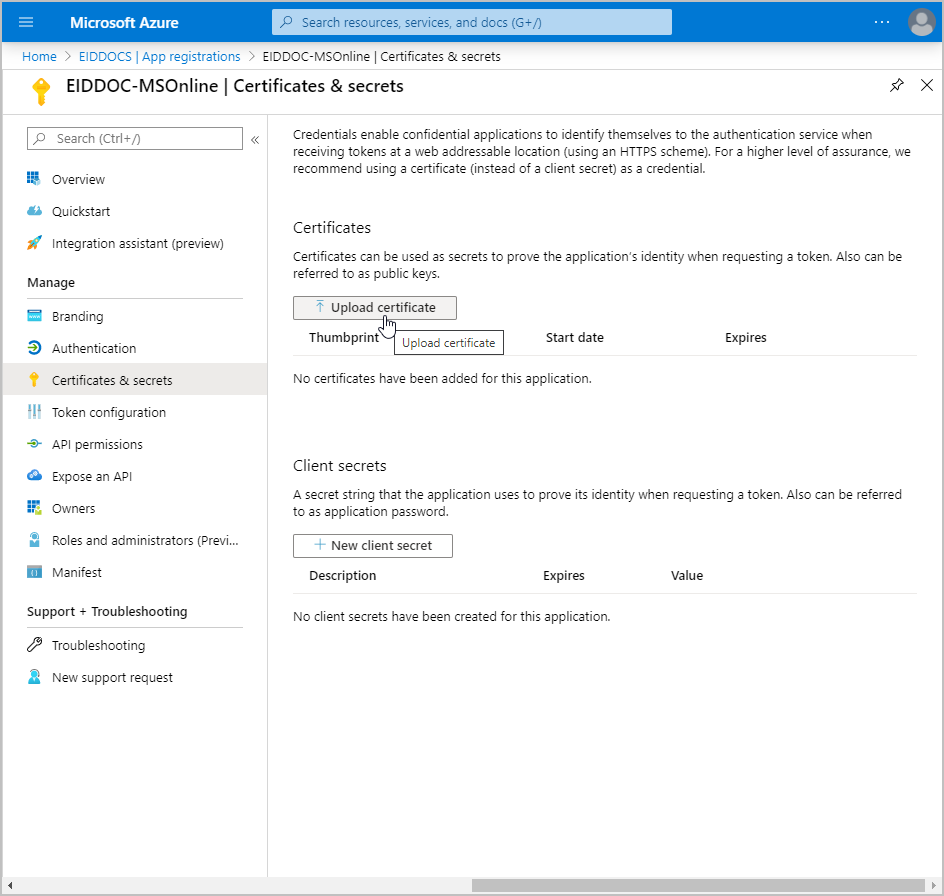
Under Manage, click Certificates & secrets.
-
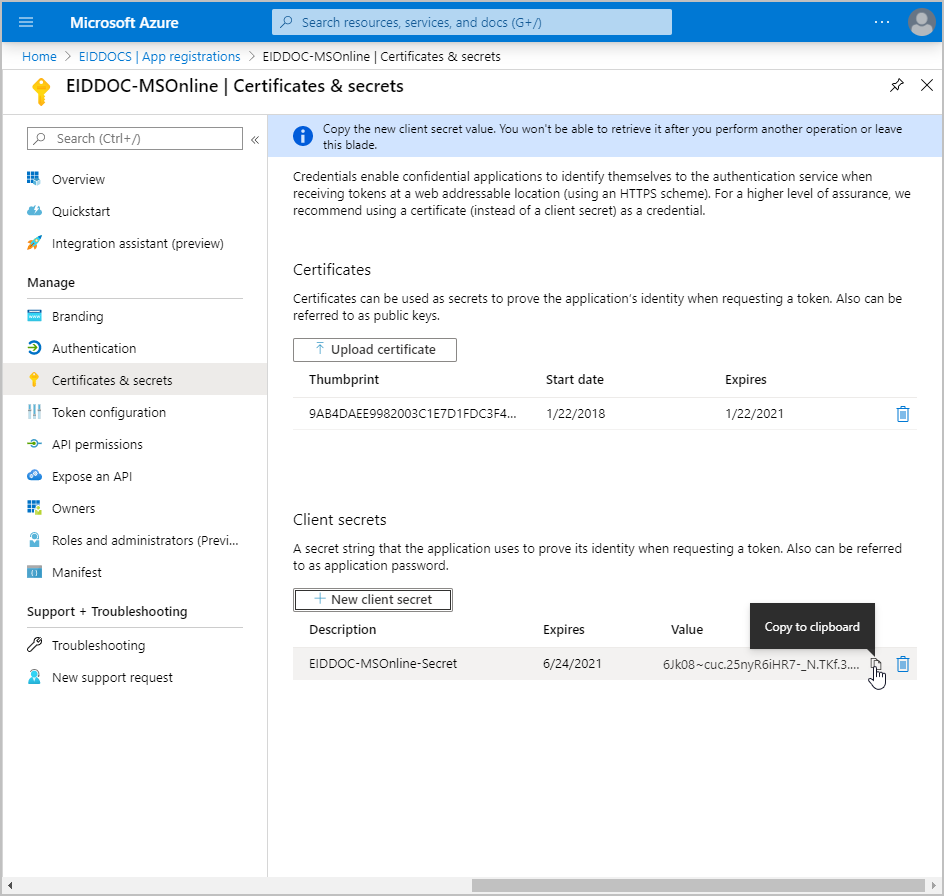
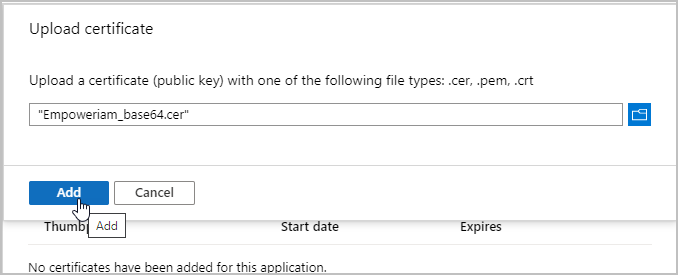
Under Certificates, click Upload certificate and upload the base-64 encoded certificate.
-
Click Add.
-
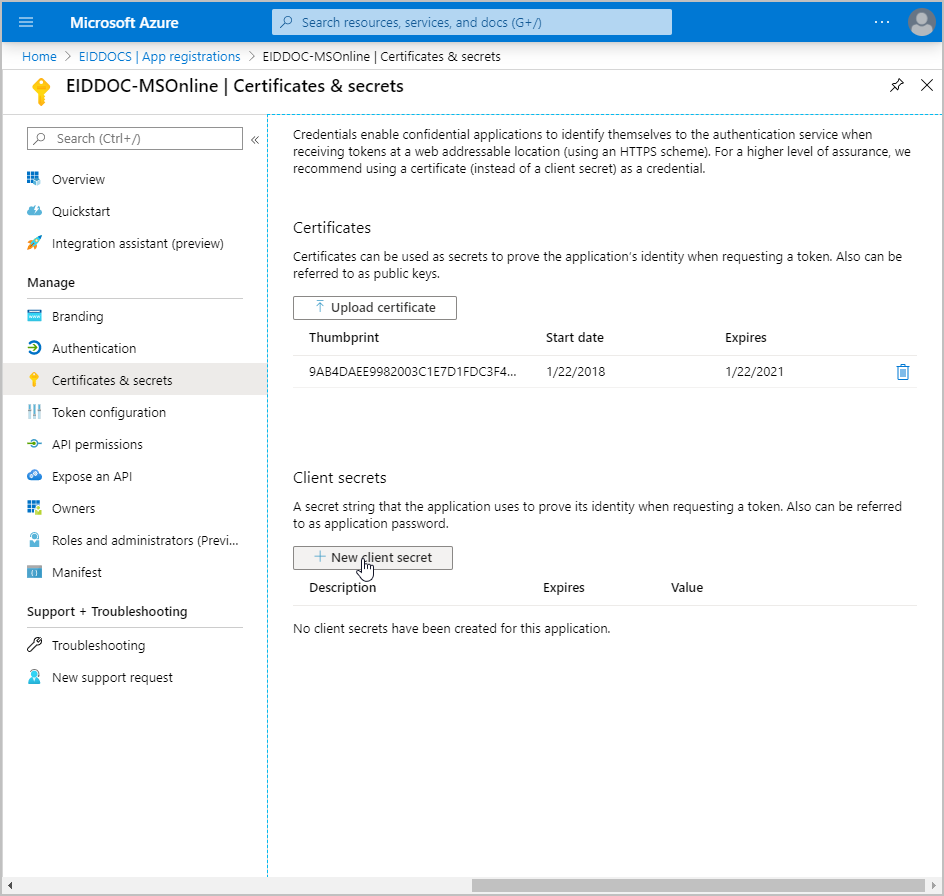
Under Client secrets, click New client secret. The secret is used by the application to prove its identity when requesting a token.
-
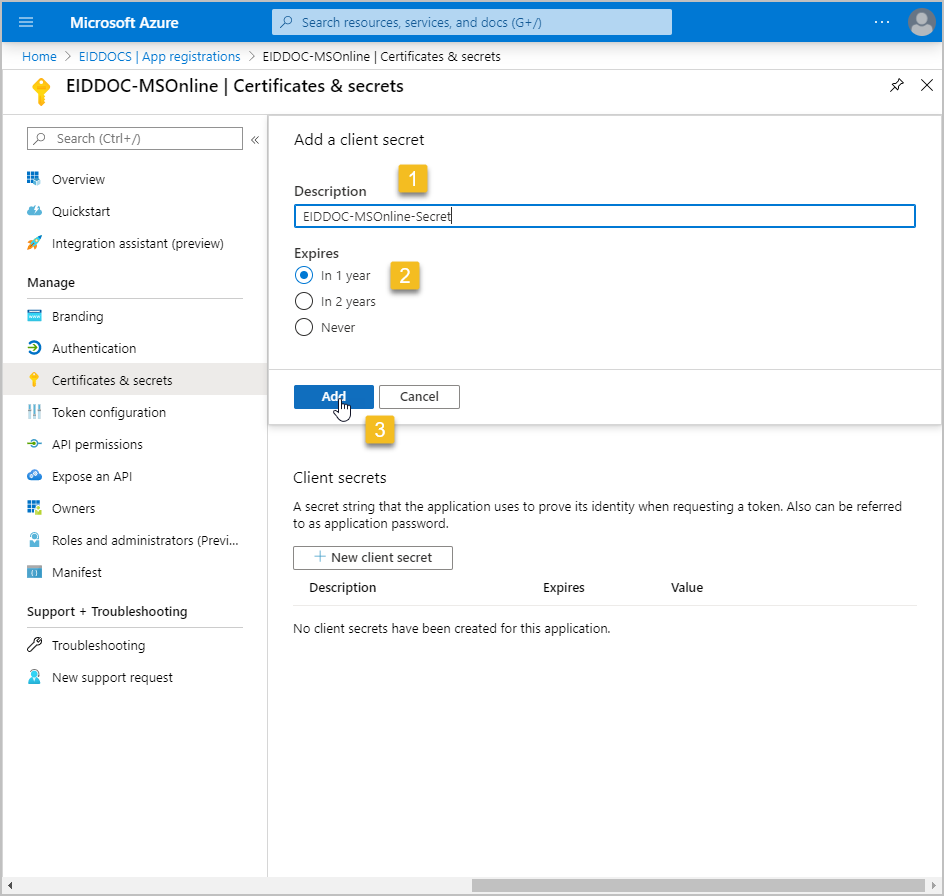
Enter a Description for the client secret, select when the secret Expires and then click Add.
-
Copy the secret. You will use it to configure Azure Active Directory Authentication for the App Service you create for the MS Online PowerShell Microservice.